Source View and editor
The Source View shows the project's files in a code editor with tabs. The editor is Monaco, the editor component of Visual Studio Code. Keyboard shortcuts, multi-cursor editing and the find widget work as in VS Code.
The editor is for reading code, following symbols and making targeted changes. It has no debugger and does not build or run the project. Use the terminal or your IDE for that.
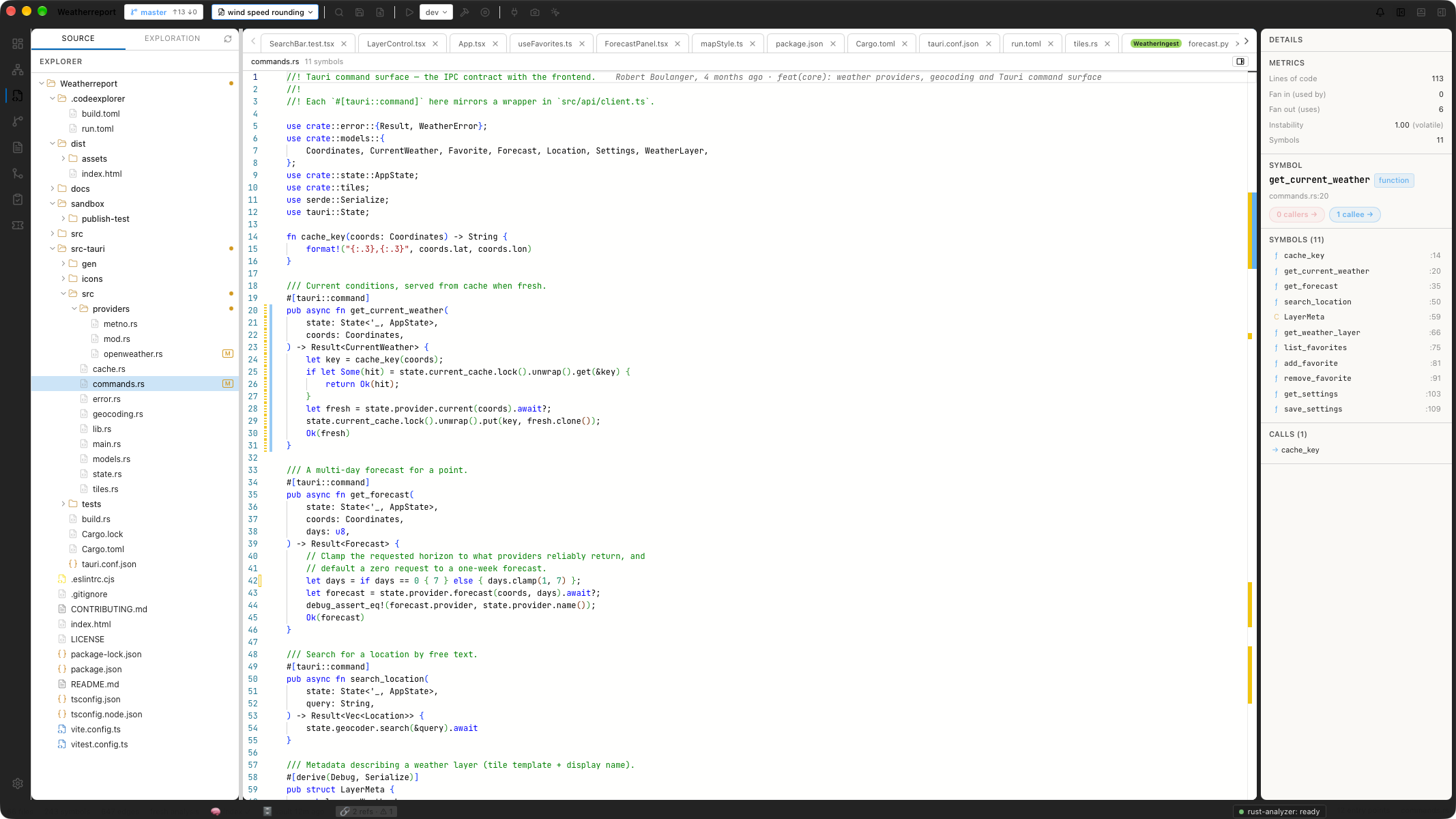
Explorer on the left, commands.rs in the editor, the details panel on the right with get_current_weather selected.
Open the Source View
View › Source View (Cmd+3, Windows/Linux: Ctrl+3) shows the editor
alone. View › Graph + Editor Split (Cmd+2) shows the graph above and the
editor below.
View › Toggle Sidebar (Cmd+B) shows or hides the explorer.
Open a file
- In the explorer, click a file on the Source tab.
- In global search (
Cmd+P), select a result and pressReturn. See Search. - In the graph, double-click a node. See Graph View.
- Click a
ce://fileorce://symbollink in a chat answer or a projectdocs entry.
The explorer expands to the file that is open in the editor, wherever the file was opened from.
Tabs
Each open file has a tab. A dot in the tab marks unsaved changes.
By default every opened file gets its own tab. With Edit › Preview Tabs
(single-click replaces) switched on, a file opened with a single click
replaces the previous preview tab. A preview tab has an italic title.
Double-click it to keep it open. Cmd-click a file in the file tree to open
it in a regular tab right away.
Right-click a tab for these entries:
| Entry | Effect |
|---|---|
| Close | Closes the tab. |
| Close Others | Closes all other tabs in this group. |
| Close All in this group | Closes every tab in this group. |
| Split Right, Split Down | Opens the file in a new editor group. |
| Open Preview to the Side | Markdown files only: opens a rendered preview next to the source. |
Files of a reference project carry a coloured badge with the project name and open read-only.
Split the editor
The editor area can hold several groups side by side or one above the other. Each group has its own tabs.
| Menu entry | Shortcut | Effect |
|---|---|---|
| Editor › Split Right | Cmd+\ | New group to the right of the active one. |
| Editor › Split Down | Cmd+Shift+\ | New group below the active one. |
| Editor › Close Group | Closes the active group. | |
| Editor › Focus Next Group | Cmd+Option+→ (Windows/Linux: Ctrl+Alt+→) | Moves the focus to the next group. |
| Editor › Focus Previous Group | Cmd+Option+← (Windows/Linux: Ctrl+Alt+←) | Moves the focus to the previous group. |
Drag the border between two groups to resize them.
The line above the editor
Below the tabs, a line shows the file name and the number of symbols the analysis found in the file. It also shows:
- saving… while a save is running, save failed if it failed. Hover over save failed for the error.
- For a file of a reference project: the project name, the state it reads (working copy or snapshot) and read-only.
- For a Markdown file: Open in Docs View. See Docs View.
- At the right end, a button that shows or hides the details panel.
Details panel
The details panel on the right shows facts about the open file and the selected symbol.
| Section | Content |
|---|---|
| Metrics | Lines of code, Fan in (used by), Fan out (uses), Instability, Symbols of the file. |
| Symbols (N) | All symbols of the file. Click one to jump to it. |
| Symbol | The selected symbol with kind, file and line, and the buttons N callers → and N callees →. Both open the Call Chain Explorer. A symbol without calls shows Explore call chain →. |
| Called by (N), Calls (N) | Direct callers and callees. Click one to draw callers of or callees of that symbol in the graph. |
A symbol is selected when you jump to it from the Symbols list, from global search, from the graph or with Go to Definition into another file. Moving the cursor in the editor does not change the selection.
Markdown and images
A Markdown file opens as source. Editor › Open Markdown Preview to the
Side (Cmd+Shift+V, Windows/Linux: Ctrl+Shift+V) opens the rendered version in a second group. View ›
Open Markdown in Docs View opens it in the WYSIWYG Docs View.
Image files open as a picture.
Limits
- No debugger, no breakpoints, no test runner.
- The minimap is switched off.
- There is no back and forward history for jumps between files. Use the tabs to return.
- Monaco's own TypeScript checks are off. The editor shows no type errors;
without the project's
node_modulesthey would be wrong.