Search
Global search finds files, symbols, code and user-facing text in the whole project. It reads the index of the last analysis. Find… searches the open file.
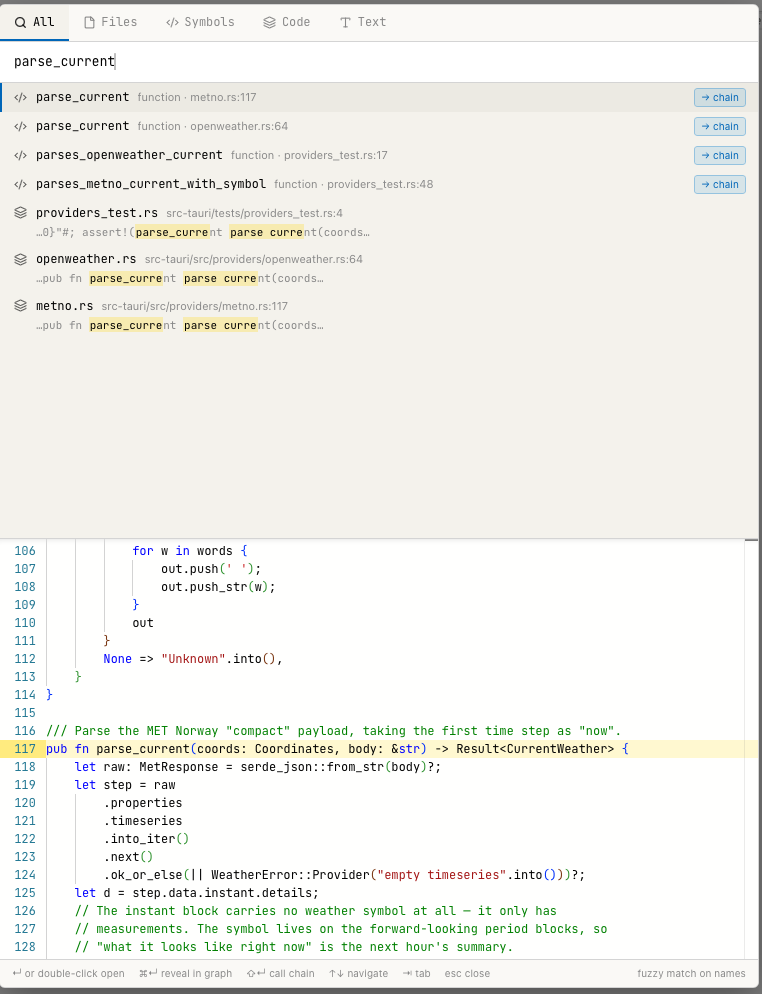
Search for parse_current on the All tab: four symbols, three code hits, the first symbol in the preview.
Open global search
- File › Go to File/Symbol… (
Cmd+P, Windows/Linux:Ctrl+P) - the magnifier button in the title bar
Escape or a click outside the window closes it.
Tabs
| Tab | Searches | Matching |
|---|---|---|
| All | All four kinds below, up to 12 results each, in this order. | as per kind |
| Files | File names. | Fuzzy match: the letters of the query in order, word starts count more. fsrv finds forecast_service.rs. |
| Symbols | Names of functions, classes, methods, types. | Fuzzy match as for files. |
| Code | The source text of all indexed files. | Full-text search, ranked by relevance. |
| Text | User-facing text: UI labels, string literals, i18n values. | Full-text search, ranked by relevance. |
Tab and Shift+Tab switch tabs, as do Cmd+1 to Cmd+5.
The Code and Text tabs accept these operators:
| Query | Finds |
|---|---|
cache key | Both words. |
cache OR store | Either word. |
cache NOT test | cache without test. |
"cache key" | The exact phrase. |
forecast* | Words that start with forecast. |
NEAR(cache key, 5) | Both words at most five words apart. |
Code search splits identifiers: forecast also finds get_forecast and
ForecastPanel.
Open a result
The first result is selected. Up and Down move the selection; the pane
below shows the file at the matching line.
| Action | Effect |
|---|---|
Return or double-click | Opens the file in the editor at the line. |
Cmd+Return | Opens the file and shows it in the graph. |
Shift+Return or → chain | Symbols only: opens the Call Chain Explorer for the symbol. |
A Text result from an i18n file without a known location has no preview.
Search in the open file
Edit › Find… (Cmd+F) opens the find widget of the editor. It
supports case, whole word and regular expressions, and replace.
In a projectdocs entry and in the Docs View, the same command opens a find bar over the text, in read mode and in the editor. See Find in an entry.
Find the code behind a label
To find where a text from the running application is rendered, search for it on the Text tab. The result names the file and line of the label, also when the text comes from an i18n file.
The assistant has more for this: given a label or a screenshot, it finds the component that renders it and the handler that runs on click. Ask in the chat, for example "Where is the button Save identity rendered and what does it do?".
Search by meaning
Global search matches words. The assistant can also search by meaning, with
a local embedding index of all symbols. "Where are credentials checked?"
then finds verifyToken or resolveCredentials. The assistant's tool
server builds this index in the background when a chat session starts. The
status bar shows 🧠 index with a percentage while it builds and 🧠
index ✓ when it is ready. Analysis › Rebuild Semantic Index rebuilds
a different index, the one for projectdocs entries and specs (see
Keep the index current).
Limits
- Global search reads the index. A file changed since the last analysis is found with its old content until it is saved in Tracemoor or the file watcher has picked up the change.
- Each tab shows at most 50 results.
- Files and folders excluded from the analysis do not appear.
- In code results the highlighted part of a match can be shorter than the
match, and the snippet can repeat an identifier in split form
(
parse_current parse current).