Edit and save files
Every file of the project is editable in the Source View. The session mode of the chat (ReadOnly, Safe, Brave) limits what the assistant may change. It does not limit your own edits.
Files of a reference project open read-only. Change them in their own project.
Save
- File › Save (
Cmd+S, Windows/Linux:Ctrl+S) writes the active file. - Auto-save writes changed files after a pause in typing. It is on by default with a delay of 10 seconds.
A dot in the tab and in the line above the editor marks unsaved changes. save failed in that line means the write failed; hover over it for the error.
To change auto-save:
- Open Edit › Preferences… (
Cmd+,). On macOS also Tracemoor › Settings…. - On the General tab, switch Auto-save edits in all editors on or off.
- Set Auto-save delay (seconds).
What happens after saving
- The analysis updates the saved file. Graph, details panel and search see the new symbols. If the file no longer parses, a message reports Parse error — analysis for this file cleared. and the file has no symbols until it parses again.
- The gutter shows the changed lines. See Gutter and anchors.
- The Git view lists the change in the active changelist. See Working changes.
- Anchors of specs and projectdocs on changed symbols can become suspect. See Anchors.
Changes by other programs
When the assistant, a formatter or a Git command changes the open file, the editor loads the new content. Cursor and scroll position stay.
If the editor holds unsaved changes, it keeps them and shows a warning that the file changed on disk. The next save, including auto-save, overwrites the version on disk with the editor's content.
This works for source files the analysis knows. Other files, such as
.json, show the new content after you open them again.
After Revert hunk in the gutter the editor reloads the file. With unsaved changes it does not reload and shows Unsaved changes — file not auto-reloaded after revert. Save first or close the tab.
Create, rename and delete files
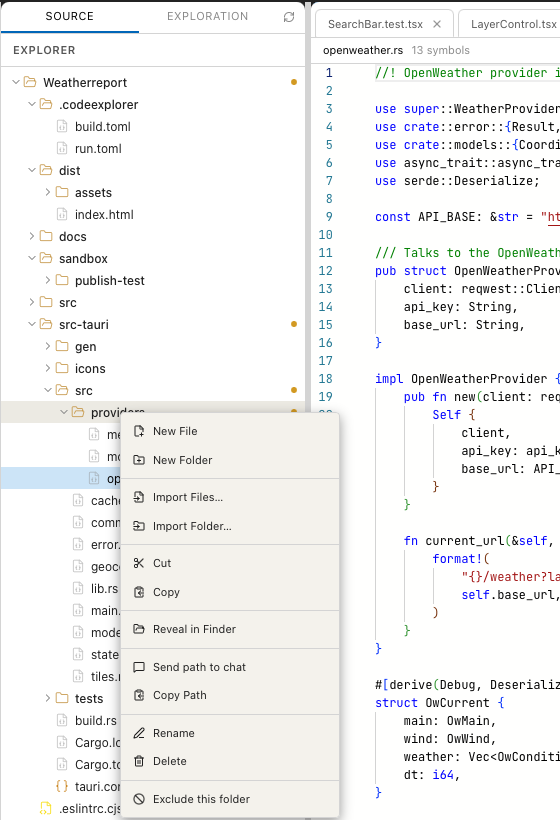
Context menu of the folder providers.
Right-click a file or folder on the Source tab of the explorer.
| Entry | Effect |
|---|---|
| New File, New Folder | Folders only. Adds an input line in the tree; type the name and press Return. A new file opens in the editor. |
| Import Files…, Import Folder… | Folders only. Copies files or a folder from elsewhere into this folder. |
| Cut, Copy | Marks the entry for a paste into another folder. |
| Reveal in Finder | Shows the entry in the file manager. |
| Open with default | Files only. Opens the file in its default application. |
| Send path to chat, Copy Path | Puts the path into the chat input or the clipboard. |
| Rename | Turns the name into an input field. Return confirms, Escape cancels. |
| Delete | Asks Move to trash? and moves the entry to the trash. |
| Exclude this file, Exclude this folder | Removes the entry from the analysis with the next re-analysis (see Keep the index current). Include file again undoes it. |
| Exclude all *.ext files | Files only. Excludes every file with this extension; for test and story files also *.test.*, *.spec.*, *.stories.*. |
| Ask AI: explain this file, Ask AI: find bugs, Ask AI: write tests | Files only. Sends the request with the file to the chat. |
| Add File to AI Context | Files only. Adds the file to the chat context without sending a message. |
Drag a file or folder onto another folder to move it. Hold Alt while
dropping to copy it.
The same operations are in the menu bar:
| Menu entry | Shortcut |
|---|---|
| File › New File in Explorer… | Cmd+Alt+N |
| File › New Folder in Explorer… | Cmd+Alt+Shift+N |
| Edit › Rename Selected (Explorer) | F2 |
| Edit › Move Selected to Trash (Explorer) | |
| Edit › Reveal Selected in File Manager | |
| Edit › Open Selected with Default App | |
| View › Refresh Explorer Tree | F5 |
The Exploration tab of the explorer shows the exploration folder (specs, projectdocs, attachments) with the same file operations.
Limits
- No compiler errors or type errors in the editor. Build and test in the terminal or the IDE.
- Undo in the editor covers the current file only. A deleted file comes back from the trash, not with Undo.