Terminal
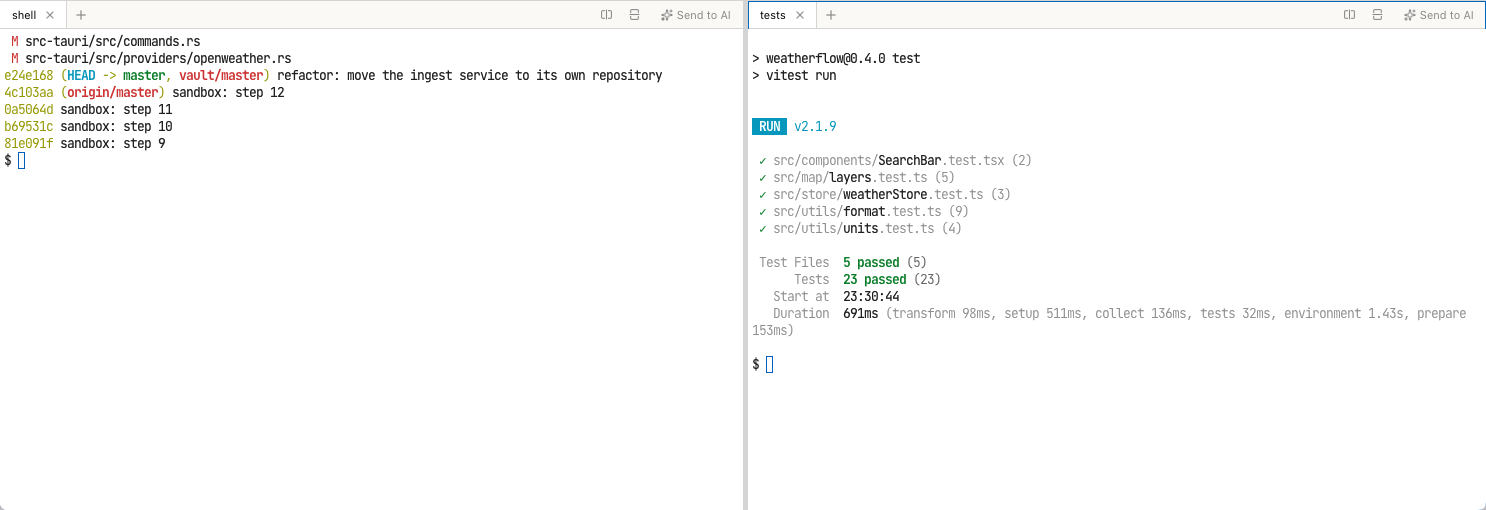
The terminal panel below the editor runs shells in tabs. A shell starts in the
project root with your login shell: $SHELL on macOS and Linux (/bin/zsh or
/bin/bash if it is not set), PowerShell or cmd.exe on Windows. The panel
can be split into panes, and tabs can be moved between them.
Show and hide the panel
Choose View › Toggle Terminal Panel (Cmd+`, Windows/Linux:
Ctrl+`). Drag the top edge of the panel to change its height.
Closing the last tab hides the panel. The next time it opens, it starts with a new shell.
Work with tabs
| Action | How |
|---|---|
| New tab | Click + in the tab bar, or Terminal › New Tab (Cmd+T, Windows/Linux: Ctrl+T). |
| Close tab | Click × on the tab, or Terminal › Close Tab (Cmd+Shift+W, Windows/Linux: Ctrl+Shift+W). Closing a tab ends its shell. |
| Rename tab | Double-click the title, type the new name, press Return. Escape cancels. |
| Reorder tabs | Drag a tab within the tab bar. |
Each tab has its own shell process. It keeps running while another tab is in front.
Split the panel
- Click into the pane you want to split.
- In the tab bar of that pane, click Split right or Split down, or choose Terminal › Split Right or Terminal › Split Down.
The new pane opens with a new shell. Drag the line between two panes to change their sizes.
To move a tab into another pane, drag it onto that pane:
- Drop it in the middle to add it to the pane's tabs.
- Drop it near an edge to split the pane on that side and place the tab in the new half.
A pane that has no tabs left disappears. Splitting and moving do not restart a shell. A running process, for example a dev server, continues.
Send output to the AI
- Select text in the terminal. Without a selection, the last 50 lines of the active tab are used.
- In the tab bar, click Send to AI.
- In the Ask AI dialog, enter your question and click Ask.
The output, the tab title and the working directory go into the question. See Ask about code.
Limits
- The AI does not read or type into these terminals. Its own commands run in its own session, see The chat panel.
- Tabs and their contents are not restored after a restart of Tracemoor.
- For everyday Git work the Git view is the shorter path. The terminal covers the commands it does not offer.