Docs View
The Docs View reads and edits Markdown documents in a WYSIWYG editor:
architecture notes, guides, a README. It is meant for documents in the
exploration folders docs/ and notes/, and can also open Markdown files from
the source tree. projectdocs entries have their own reading view in the
dashboard.
Open it with View › Docs View Cmd+4 (Windows/Linux: Ctrl+4).
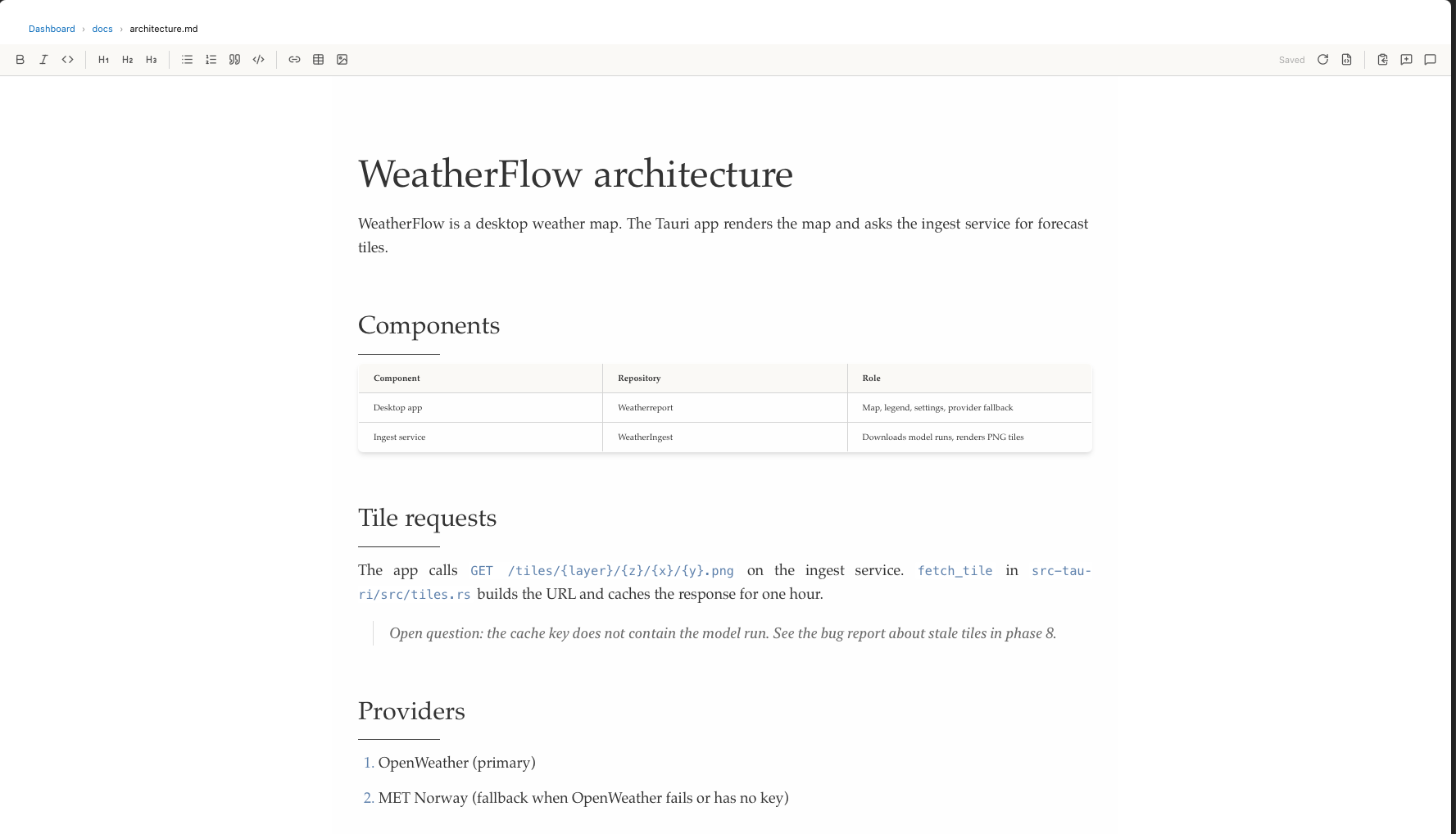
docs/architecture.md of the Weatherreport exploration in the Docs View.
Open a document
- In the sidebar, switch to Exploration and click a
.mdfile, or - in the code editor, with a Markdown file open, choose View › Open Markdown in Docs View.
The breadcrumb above the toolbar shows the path. Click Dashboard in it to go to the projectdocs dashboard.
Whether a click on a .md file in the Source tree opens the code editor or
the Docs View is set in Tracemoor › Settings… (Windows/Linux:
Edit › Preferences…), tab General,
Open Markdown from the source tree in. The context menu of a .md file
always offers the other choice.
Edit
The document is always editable. Type into the text. Changes are saved after a short pause and when you close the document. Saved in the toolbar shows the state. Save now saves immediately.
The pause is set in Settings › General: Auto-save edits in all editors and Auto-save delay (seconds).
The frontmatter of a file is not shown in the editor and is written back unchanged.
Toolbar
| Button (tooltip) | Action |
|---|---|
| Bold (⌘B), Italic (⌘I), Inline code | Character formatting. |
| Heading 1 to Heading 3 | Turn the paragraph into a heading. |
| Bullet list, Numbered list, Quote, Code block | Block formatting. |
| Insert link (ce:// picker) | Link to a source file, symbol, document, projectdocs entry or spec. See Links. |
| Insert table | A new table. Inside a table, buttons for rows, columns and the header row appear. |
| Insert image | Choose an image file. It is copied into images/ next to the document. |
| Save now (autosaves on pause and on close) | Save immediately. |
| Reload from disk | Discard the editor state and load the file again. |
| Open raw Markdown in the code editor (frontmatter, etc.) | Open the file as text. |
| Copy path (markdown ticks) to clipboard | Path relative to the exploration, in backticks. |
| Append file path to the chat input | Add the path to the current chat. |
| Start a new chat session from this document | New chat with the path in the input. |
You can also drop an image file onto the editor. It is copied into images/
and inserted where you dropped it.
The comment button in the editor toolbar opens the comment box; selected text becomes its context. Add saves pending edits, writes the comment after the matching paragraph and reloads the document.
Edit › Find… (Cmd+F) searches the open document, as in a projectdocs
entry. See Find in an entry.
Links
Insert link (ce:// picker) opens a search with four tabs: Source / Symbol
(switch between Symbol and Line), Docs, Projectdocs and
Specs. Choose a result, optionally change the
Link text, and insert. The link is stored as an ordinary Markdown link with
a ce:// target, for example [fetch_tile](ce://symbol?file=src-tauri%2Fsrc%2Ftiles.rs&name=fetch_tile&line=17).
In the Docs View it renders as a chip. Click it to open the target.
Documents and the AI
The AI reads and writes the files under docs/ with these tools. Writing
needs Brave mode.
| Tool | Purpose |
|---|---|
docs_list, docs_read, docs_search | Find and read documents. |
docs_create, docs_write, docs_append_section | Create, replace, extend. |
docs_rename, docs_move, docs_delete | Organise. |
When the AI changes a document that is open in the Docs View, the view reloads it.
Limits
- If the same file has unsaved changes in the code editor, the Docs View shows a notice. Save or discard them there first.
- Image files cannot be previewed in the Docs View.