Review changes
Uncommitted changes are visible in two places: in the editor gutter while you work, and in the diff pane of the Git view.
In the editor gutter
The gutter to the left of the code marks added, modified and deleted lines of the open file. The marker colour shows which changelist the hunk belongs to. The gutter updates as you type and when files change outside Tracemoor.
Spec and projectdocs anchors use their own gutter columns next to the Git column. See Gutter and anchors.
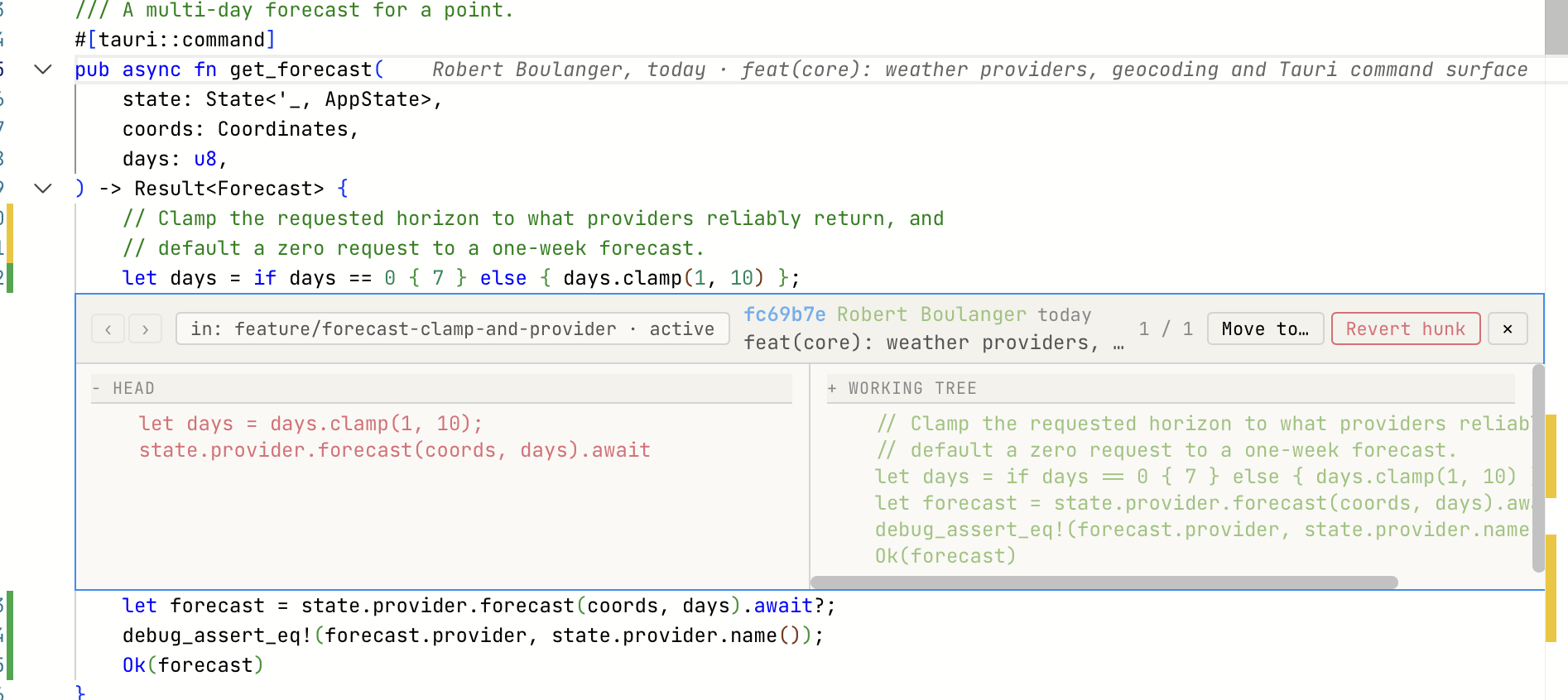
Git markers for added, modified and deleted lines in the editor gutter.
Inspect a hunk
- Click a Git marker in the gutter.
- A peek window opens below the line and shows the diff of the hunk.
The header of the peek window shows the changelist of the hunk, for example in: Changes (with · active if it is the active changelist), and the most recent commit that touched these lines. It has these controls:
| Control | Action |
|---|---|
| ‹ / › | Step through the last 20 commits that touched these lines. The counter shows the position, for example 2 / 7. The diff below does not change. |
| Revert hunk | Restores the previous version of this hunk. Other hunks of the file stay unchanged. |
| Move to… | Moves the hunk to another changelist. See Changelists. |
| ✕ | Closes the peek window (Esc). |
Inline blame
The editor shows the last commit that changed the line under the cursor as grey text at the end of the line: author, relative date ("3 days ago") and commit subject. Inline blame is on by default. To switch it off or on, choose Git › Toggle Inline Blame.
In the diff pane
- Open the Git view (
Cmd+8). - In the changelist panel, click a file.
The diff pane on the right shows the working-tree diff of that file. A file with hunks in more than one changelist appears under each of them. The diff then shows only the hunks of the changelist under which you clicked the file, and the header names it, for example (only changelist "Refactoring").
The diff scrolls to the first change of the file. Click × in the header of the diff pane to clear it.
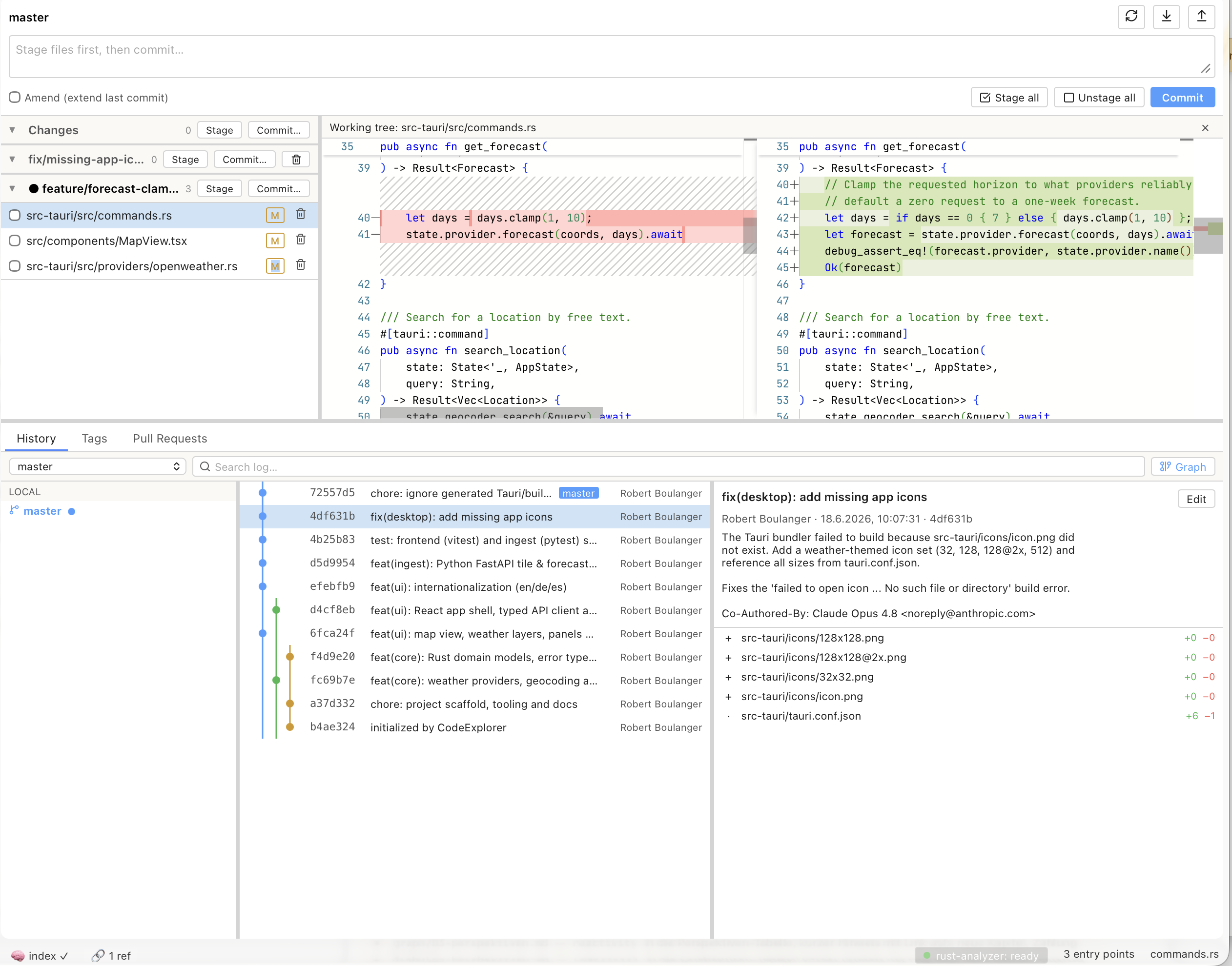
Diff pane with the previous and the current version of a file.
Discard changes in a file
- In the changelist panel, click the trash icon at the end of the file row.
- In the dialog, click OK. Cancel keeps the changes.
If the file has hunks in more than one changelist, only the hunks of the changelist in which you clicked the icon are discarded. Hunks of the same file in other changelists stay.
Discarding cannot be undone from Tracemoor.