Preferences
Preferences holds the settings of the Tracemoor installation. They apply to every exploration and every window on this machine and are not shared through git. Settings of one exploration are in Project Settings.
Open Preferences with Tracemoor › Settings… (Cmd+,). On Windows and
Linux, choose Edit › Preferences… (Ctrl+,).
The dialog has six tabs. Most controls take effect when you change them. Only Default exploration location on the General tab needs Save.
Tracemoor stores these settings in app-config.json in its application
data folder (macOS: ~/Library/Application Support/com.codeexplorer.app/).
Tokens and passwords go to the keychain of the operating system.
General
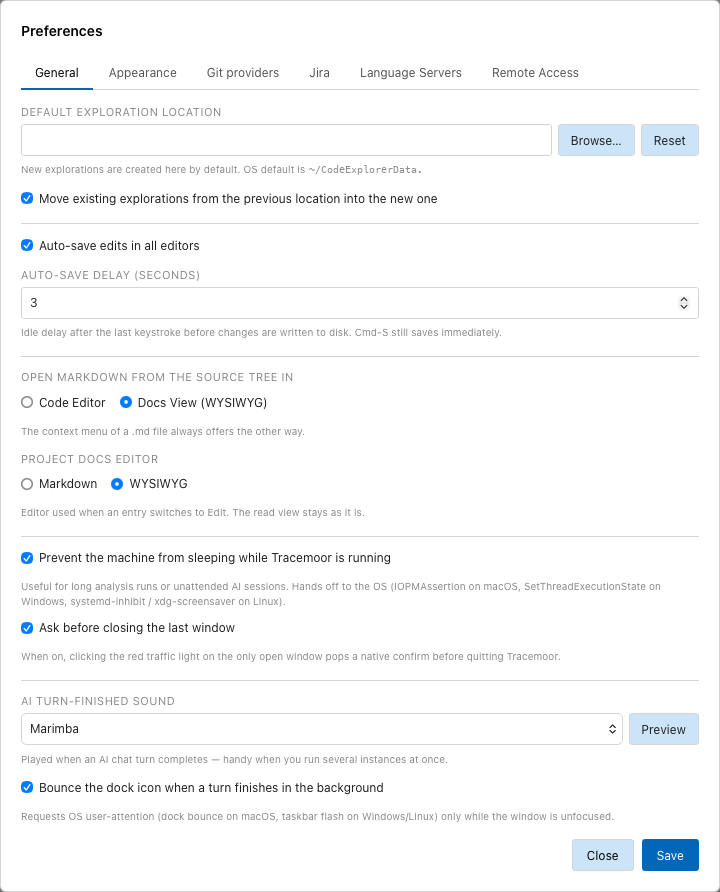
The General tab. The exploration location is blanked out.
| Setting | Default | Effect |
|---|---|---|
| Default exploration location | ~/CodeExplorerData | Folder in which new explorations are created. Browse… picks a folder, Reset returns to the default. Click Save to apply. See Default location. |
| Move existing explorations from the previous location into the new one | on | When you save a new location, existing explorations in the old folder are moved there. |
| Auto-save edits in all editors | on | Writes changes in the code editor and in projectdocs entries to disk after a pause. |
| Auto-save delay (seconds) | 10 | Pause after the last keystroke before auto-save writes. From 1 to 60. Cmd+S saves at once. |
| Open Markdown from the source tree in | Code Editor | Where a .md file from the file tree opens: Code Editor or Docs View (WYSIWYG). The context menu of a .md file offers the other one. See Docs View. |
| Project docs editor | Markdown | Editor of a projectdocs entry after Edit: Markdown or WYSIWYG. See Edit an entry. |
| Prevent the machine from sleeping while Tracemoor is running | off | Keeps the computer awake, for example during a long analysis or an AI session that runs unattended. The display can still turn off. |
| Ask before closing the last window | on | Closing the only open window asks before Tracemoor quits. |
| AI turn-finished sound | Chime | Sound played when the AI finishes a turn: None, Chime, Beep or Marimba. Preview plays it. |
| Bounce the dock icon when a turn finishes in the background | on | When the AI finishes a turn while the window is not focused, the dock icon bounces (Windows and Linux: the taskbar entry flashes). |
Appearance
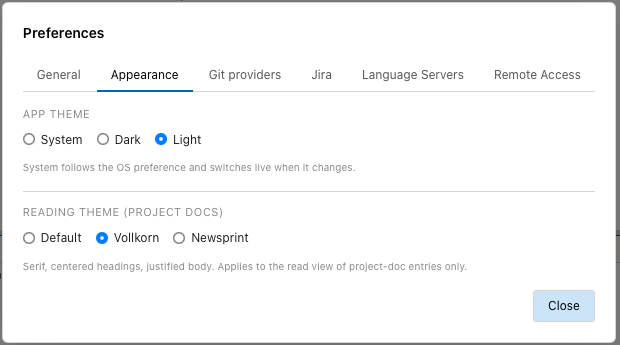
The Appearance tab.
| Setting | Default | Effect |
|---|---|---|
| App theme | System | System follows the appearance of the operating system and switches when it changes. Dark and Light fix the theme. |
| Reading theme (project docs) | Default | Typography of the read view of projectdocs entries. Default uses the app font. Vollkorn sets a serif font with centered headings and justified text. Newsprint sets PT Serif on an off-white background. |
Git providers
Access tokens for GitHub and Bitbucket Cloud. Pull requests and GitHub or Bitbucket issues use them. See Set up pull requests.
Jira
The Jira Cloud account: site URL, email and API token. Test checks the saved credentials, Clear removes them. The Jira project of an exploration is set in Project Settings. See Connect Jira.
Language Servers
Which language servers the code editor starts, and where their programs are. The same view opens from Analysis › Language Servers…. See Language servers.
Remote Access
Access to the AI chat from another device on the network. AI › Remote Access… opens Preferences on this tab. See Remote access.
Related settings
- AI › AI Settings… sets the AI provider, models and keys. See Set up a provider.
- The session mode of a chat is set per session. See Session modes.