Create and open an exploration
An exploration belongs to exactly one project. Create it once, then open it from the welcome screen or the File menu.
The welcome screen
Tracemoor opens the exploration that was open when it last quit. If there was none, or after File › Close Exploration, it starts on Welcome to Tracemoor. A new window from File › New Window always starts there.
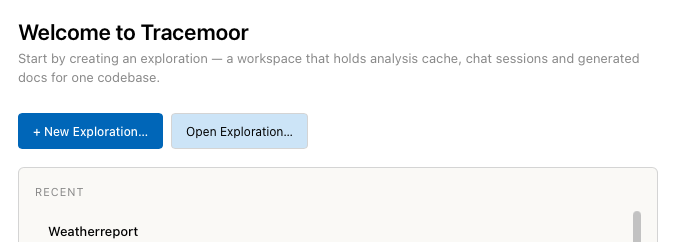
The welcome screen. The line under each entry in Recent shows the project folder and when the exploration was last used (masked here).
- + New Exploration… creates an exploration.
- Open Exploration… opens an exploration folder.
- Recent lists the explorations used on this machine, most recent first. Click an entry to open it.
Rename or remove an exploration
Right-click an entry in Recent:
| Entry | Effect |
|---|---|
| Rename… | Changes the display name in the title bar, Recent and Open Recent. The folder keeps its name. |
| Remove from Recent | Takes the entry off the list. Nothing on disk changes. Opening the folder again brings it back. |
| Move to Trash… | Asks, then moves the exploration folder with its projectdocs, specs, chat sessions and settings to the trash. The project folder is not touched. Not possible while a window has the exploration open. |
The same actions are in the File menu: New Exploration…
(Cmd+Shift+O, Windows/Linux: Ctrl+Shift+O), Open Exploration…
(Cmd+O, Windows/Linux: Ctrl+O) and Open Recent with the last ten
explorations.
Create an exploration for a local folder
- Click + New Exploration… or choose File › New Exploration….
- Keep Local folder selected.
- Under Source project, click Browse… and choose the project folder.
- Check Exploration location. Tracemoor proposes a folder named
after the project in the default location, for example
~/CodeExplorerData/weatherreport. If that folder exists, it appends-2,-3and so on. - Optional: change Display name. It appears in the title bar, in Recent and in the Open Recent menu.
- Click Create.
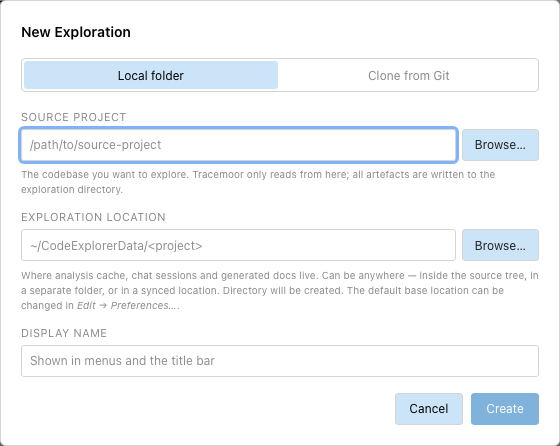
If Git has no user name and email configured, Tracemoor first asks for them, because it records a first commit in the new exploration.
The new exploration opens in the current window. The project has no index yet, so it opens on Review before analyzing. Continue with Run the first analysis.
Clone a project from GitHub or Bitbucket
Clone from Git clones the project and creates or recovers its exploration in one step. It needs an access token for the provider in Tracemoor › Settings… (Windows/Linux: Edit › Preferences…), tab Git providers.
- Click + New Exploration… and select Clone from Git.
- Under Provider, choose GitHub or Bitbucket. A provider without a token is marked — no token. Click Open Git Settings → to add one.
- Under Repository, enter
owner/repoor a full clone URL. - Under Clone source to, choose an empty or new folder for the project.
- Optional: enter a Display name. The default is the name of the cloned folder.
- Click Clone & Open.
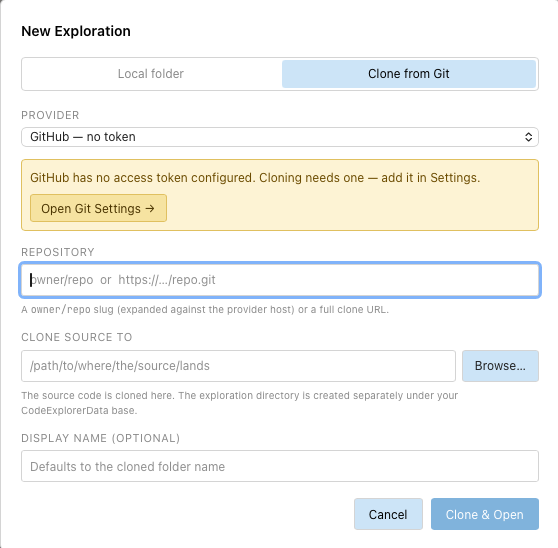
Without a token the dialog points to the Git settings.
If the project contains .codeexplorer/exploration-remote.json, the team
already shares an exploration for it. Tracemoor then clones that
exploration into the default location and connects it to the cloned
project. Otherwise it creates a new exploration there. See
Share an exploration.
Open an existing exploration
- Click Open Exploration… or choose File › Open Exploration….
- Choose the exploration folder, not the project folder. An exploration
folder contains
.codeexplorer/config.json.
Opening an exploration in a window replaces the exploration shown there. To keep both open, open the second one in a new window.
When the stored index is still valid, the project opens on the projectdocs dashboard. Otherwise it opens on Review before analyzing. See When the project opens.
Open a shared exploration for the first time
An exploration cloned from a team remote contains the shared settings but not the path of the project on this machine.
- Open the exploration with Open Exploration….
- Tracemoor shows Locate target codebase. Click OK.
- Choose the project folder on this machine.
Tracemoor stores the path in .codeexplorer/local.json of the
exploration. That file is not shared.
Change the default location
The default location for new explorations is ~/CodeExplorerData.
- Choose Tracemoor › Settings… (Windows/Linux: Edit › Preferences…).
- On the General tab, enter or browse to a folder under Default exploration location. Reset returns to the default.
- Optional: tick Move existing explorations from the previous location into the new one.
- Save.
What a new exploration contains
| Path | Content |
|---|---|
.codeexplorer/config.json | Display name, declared reference projects, project settings. Marks the folder as an exploration. |
.codeexplorer/local.json | Path of the project on this machine, bindings of reference projects |
.codeexplorer/analysis/ | The index (analysis cache) |
.codeexplorer/sessions/, attachments/ | Chat sessions and their attachments |
projectdocs/ | Masterplan and progress page of the project |
docs/ | Documents of the Docs View |
notes/ | Free notes |
README.md, .gitignore | Short description of the folder, the split between shared and local files |
The exploration is a Git repository with a first commit named
"initialized by Tracemoor". specs/ appears with the first
spec.
If the project itself contains a projectdocs/ folder, the new exploration
uses that folder instead of creating its own.
Limits
- An exploration can be open in one window only. Opening it a second time asks whether to switch to the window that has it.
- An exploration whose folder no longer exists drops out of Recent.
- Clone from Git supports GitHub and Bitbucket, and only with an access token.