The projectdocs dashboard
The dashboard shows the projectdocs of the open exploration:
the masterplan, the phases with their entries, a timeline and a search. Open
it with View › Dashboard Cmd+1 (Windows/Linux: Ctrl+1).
The dashboard opens entries in its own reading view. The code editor does not display projectdocs.
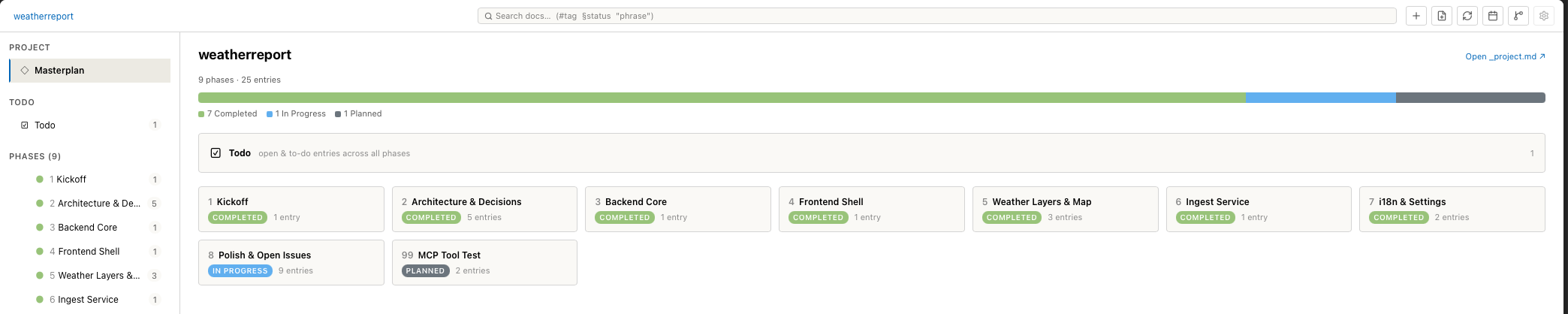
The masterplan of Weatherreport: progress bar, Todo rubric and one card per phase.
Layout
| Area | Content |
|---|---|
| Toolbar | Breadcrumb (project › phase › entry), search field, action buttons. |
| Sidebar | Project › Masterplan, Todo, Phases, and Decisions if the exploration has a decisions/ folder. |
| Main area | Masterplan, phase, entry or timeline. |
Toolbar buttons
| Button (tooltip) | Action |
|---|---|
| Create a new phase | Opens the New Phase dialog. See Create a phase. |
| Create a new entry in a phase | Opens the New Entry dialog. See Create an entry. |
| Re-index projectdocs | Reads the files again. Use it after editing files outside Tracemoor. |
| Timeline view | Opens the timeline. See Timeline. |
| Sync exploration over git | Opens Sync exploration. See Share an exploration. |
The same actions are in the Project Docs menu, see Menus. Sync exploration over git is Git › Sync Exploration….
Masterplan
The masterplan is the start page. It shows the number of phases and entries, a progress bar by phase status, the Todo rubric and one card per phase. Click a card to open the phase. Right-click a card to set the phase status.
Open _project.md opens the masterplan file itself in the reading view.
Todo
Todo collects every entry from all phases whose lifecycle status is open
or that carries the tag todo. It is a view only: there is no Todo folder on
disk. Each row shows the phase the entry belongs to. Entries in progress do
not appear in Todo.
Read a phase
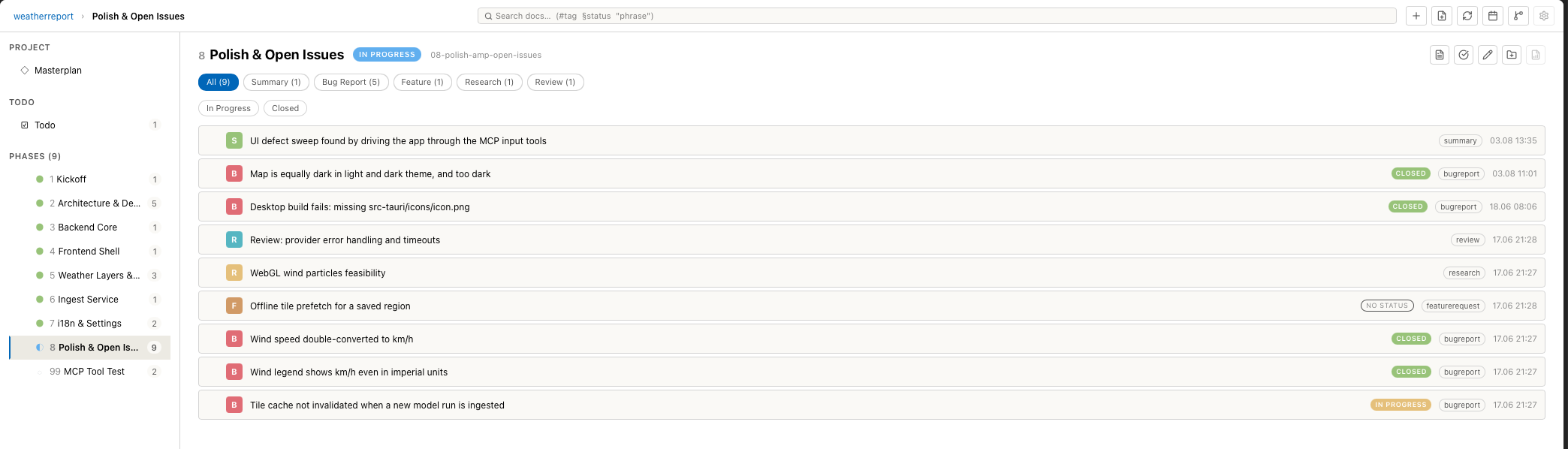
Phase 8 with nine entries. The chips filter by type and by lifecycle status.
- In the sidebar under Phases, click the phase.
- Optional: click a type chip (Bug Report (5)) or a status chip (In Progress) to filter the list. All removes the type filter.
- Click an entry to open it.
Each row shows the type letter, the title, the lifecycle status if the type
has one, the type and the date. An entry with NO STATUS is a
bugreport, featurerequest or ticket without lifecycle tag. Set one in the
entry view.
The phase header has these buttons:
| Button (tooltip) | Action |
|---|---|
| status pill | Click to change the phase status. |
| Open _phase.md | Opens the phase marker file in the reading view. |
| Mark this phase reviewed | Stores the current time as lastReviewed. The masterplan card shows it. |
| Rename this phase | Changes the title. The folder name stays, so links remain valid. |
| Add a subphase under this phase | Opens New Phase with this phase as parent. |
Entry context menu
Right-click an entry row:
| Item | Action |
|---|---|
| Set Status | Lifecycle status, for bug reports, feature requests and tickets. |
| Send to chat | Appends the entry path to the chat input. |
| New Chat from this | Starts a chat session with the entry as context. See projectdocs and the AI. |
| Copy path | Copies the path relative to the exploration. |
| Create Changelist from Entry | Creates a changelist named after the entry and links it. See Changelists. |
| Create Issue from Entry… | Creates a Jira or GitHub issue. See Tickets in projectdocs. |
| Rename… | Changes the title. |
| Delete | Deletes the file after a confirmation. |
Move and reorder
- Drag an entry onto another entry to nest it below that entry, or above or below it to reorder.
- Drag an entry onto a phase in the sidebar to move it into that phase.
- Drag a phase in the sidebar onto the upper or lower third of another phase to reorder, onto the middle to make it a subphase.
- Drag a chat message from the AI panel onto a phase or an entry to create a new entry from it.
Search
The search field in the toolbar searches titles and bodies of all entries. The results open below the field. Click a result to open the entry, or to jump to it in the timeline if the timeline is open.
| Syntax | Matches |
|---|---|
cache ttl | Entries that contain both words. |
"tile cache" | The exact phrase. |
#ui | Entries with the tag ui. Several tags must all match. |
§open | Entries whose lifecycle status or phase status starts with open. Several statuses: any of them. |
Terms can be combined: #ui §open legend.
Timeline
Click Timeline view in the toolbar. The timeline has two tabs.
Gantt
Gantt shows each phase as a bar from its first to its last dated entry.
Expand a phase with the arrow to see its entries as diamonds on the time axis.
The buttons above the phase list zoom out, fit the whole range and zoom in.
Cmd + scroll (Windows/Linux: Ctrl + scroll) zooms as well.
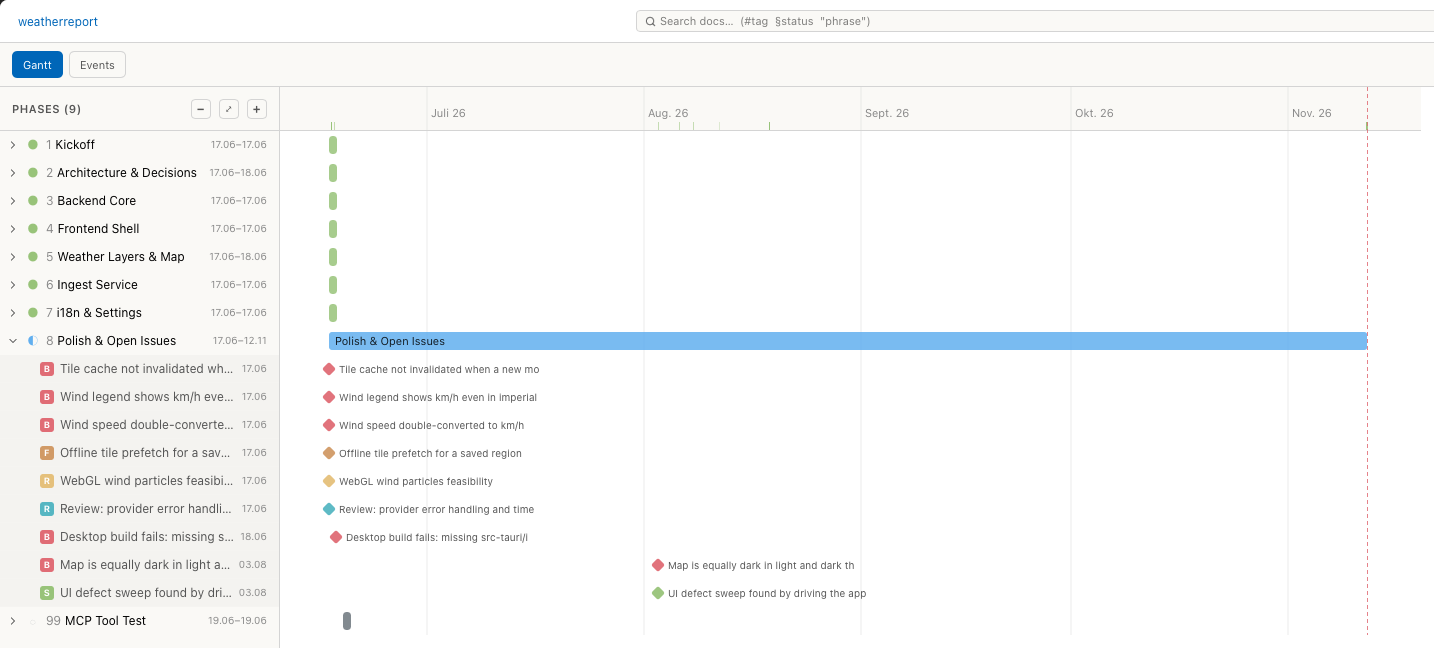
Gantt view. Phase 8 is expanded and shows its entries.
Events
Events shows git commits and projectdocs entries on one vertical time axis, newest on top. Commits are on the left with the files they touched, entries on the right at their last change. The month list on the right edge jumps to a month. Older commits load when you scroll down.
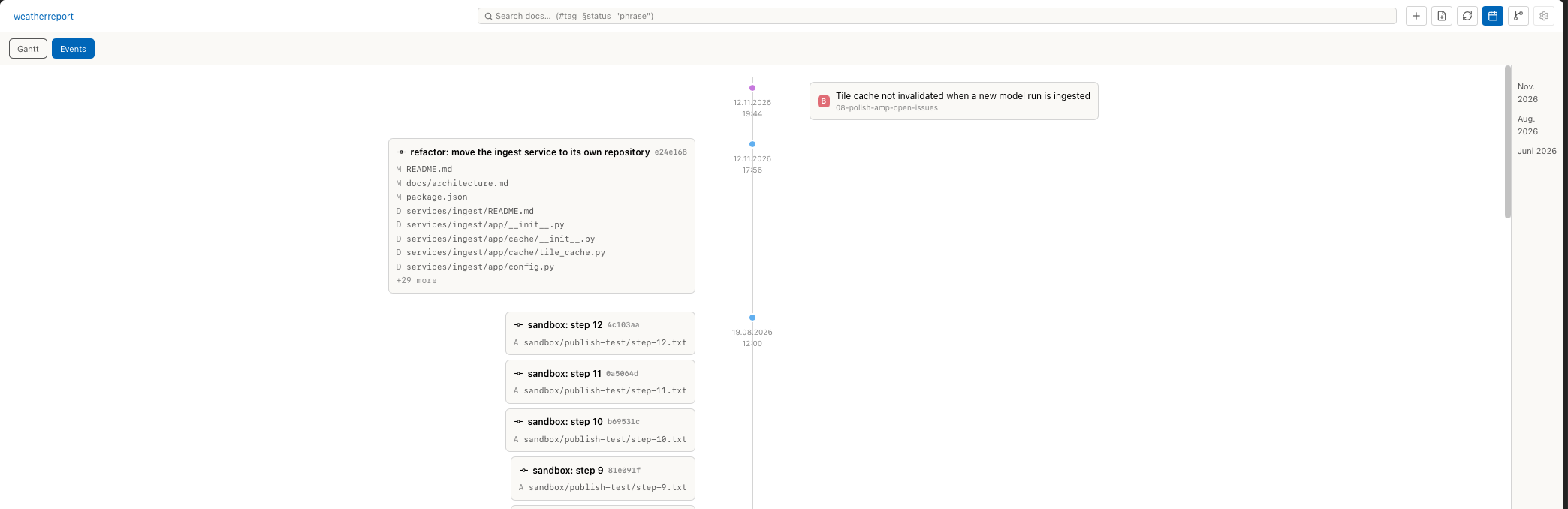
Events view. The bug report on the right was changed after the last commit.