Attach and manage references
Reference projects are managed in Project Settings, section Reference Projects (read-only). What a reference is and how it is stored is explained in Reference projects.
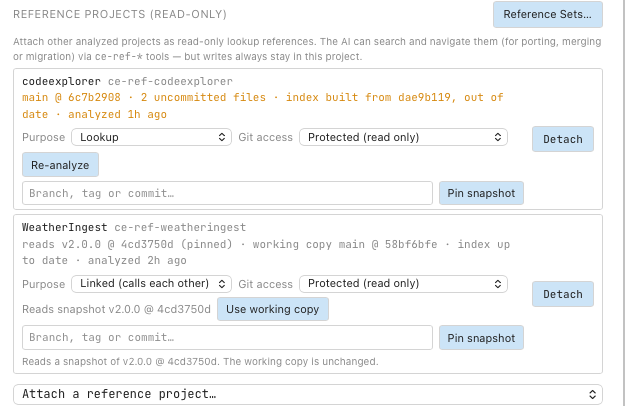
codeexplorer is a Lookup reference with an out-of-date index. WeatherIngest is Linked and reads the snapshot v2.0.0.
Attach a reference
Prerequisite: the other project has been opened in Tracemoor once, so it has an exploration and an index.
- Choose Analysis › Reference Projects…. Project Settings open at the Reference Projects (read-only) section.
- Open the drop-down Attach a reference project… and choose the project.
- Optional: in the new row, set Purpose to Linked (calls each other) if the two projects call each other.
The drop-down lists the analyzed projects Tracemoor knows on this machine. If a declaration with the same remote already exists but is missing here, the new folder is bound to it instead of creating a second reference.
Switching a reference to Linked builds its interface index once. On a large project this takes a few seconds.
Read the status line
The line under each reference shows the state it reads, for example
reads v2.0.0 @ 4cd3750d (pinned) · working copy main @ 58bf6bfe · index up to date · analyzed 2h ago.
| Part | Meaning |
|---|---|
main @ 58bf6bfe | Branch and commit of the working copy. detached @ … without a branch. |
reads v2.0.0 @ 4cd3750d (pinned) | A snapshot is read. (follows branch) for a snapshot that follows a remote branch. |
N uncommitted files | Changes in the working copy. They make the index out of date. |
index up to date | The index was built from the state that is read. |
index built from <commit>, out of date | The checkout moved on, or files changed, since the last analysis. |
not analyzed, open it in Tracemoor once | The project has no index yet. |
snapshot not analyzed yet | A new snapshot is still being analyzed in the background. |
not set up on this machine | The reference is declared but not bound here. |
folder not found on this machine | The bound folder no longer exists. |
The line turns orange when the reference is missing, not analyzed or out of
date. The status bar counts these references as ⚠ N.
To rebuild an out-of-date index, click Re-analyze under the reference. The analysis runs in the background without opening the reference in its own window.
Set up a missing reference
A reference is missing on a machine that has the exploration but not the referenced repository, for example after cloning a shared exploration. The row shows Expected at … and the remote.
- Clone the repository. Copy clone command copies a ready
git clonecommand to the clipboard. - Click Locate… and choose the folder of the checkout. The dialog starts at the expected path.
While a reference is missing, the assistant gets no tools for it and a link into it opens this section of Project Settings.
Allow Tracemoor to change the reference's checkout
Git access is a setting of this machine:
| Git access | Tracemoor may |
|---|---|
| Protected (read only) | Read only. This is the default. |
| Managed (may fetch, pull, switch) | Fetch, pull and switch branches in the reference's folder. |
With Managed, the row shows a Working copy line with three buttons:
| Button | Effect |
|---|---|
| Switch | Checks out the branch or tag typed in the field above. |
| Fetch | Runs git fetch. The checkout stays as it is. |
| Pull | Runs git pull --ff-only on the checked-out branch. With commits to pull, the button shows their number, for example Pull (3). |
Switch and Pull are refused while the reference's folder has uncommitted changes or the project is open in another Tracemoor window. Tracemoor does not stash. After a pull or switch the reference is re-analyzed.
Analysis › Fetch Reference Projects fetches every Managed reference at once.
Read another state with a snapshot
A snapshot reads a fixed state of the reference from a separate git worktree.
The working copy, its branches and HEAD stay as they are. Only the worktree
registration in .git/worktrees/ of the referenced repository changes.
- In the field Branch, tag or commit… under the reference, type or choose
a branch, tag or commit, for example
v2.0.0. - Click Pin snapshot.
The snapshot is analyzed in the background. The status line then shows both states.
With Managed git access, Follow branch creates a snapshot that follows a
remote branch such as origin/next. Update fetches and moves it to the
branch's new head. Use working copy reads the reference's own folder again;
the snapshot stays on disk.
Remove a snapshot
The list Snapshots on this machine at the end of the section shows every snapshot with the references of this exploration that read it.
- Switch every reference that reads the snapshot to another state. Until then Remove is disabled.
- Click Remove and confirm.
The worktree and its index are deleted. Other explorations that still read the snapshot show it as missing.
Detach a reference
- In the row of the reference, click Detach.
- Confirm.
The reference is removed from the shared declaration, so it disappears for everyone who shares the exploration. Anchors into it show as missing until it is attached again.
Open files of a reference
Files of a reference open read-only from the graph, from search hits, from
anchors and from ce:// links. Typing in the editor does not change them.
A link to a file or symbol of a reference carries the parameter ref with the
reference's slug:
ce://file?ref=weatheringest&path=app/routers/forecast.py&line=18
ce://symbol?ref=weatheringest&file=app/routers/forecast.py&name=get_forecast
Paths are relative to the reference's repository. If the reference is missing on this machine, the link opens the Reference Projects section instead.