Work on a package
The Work Packages tab in the lower area of the Git view lists the open work packages and runs their steps. Open it with Git › Work Packages.
Every action that changes something first shows its steps under What will happen. Nothing runs until you confirm. Git steps stop at the first error. Ticket and pull request steps that fail after a successful Git step leave the Git result in place and show a warning.
Read the list
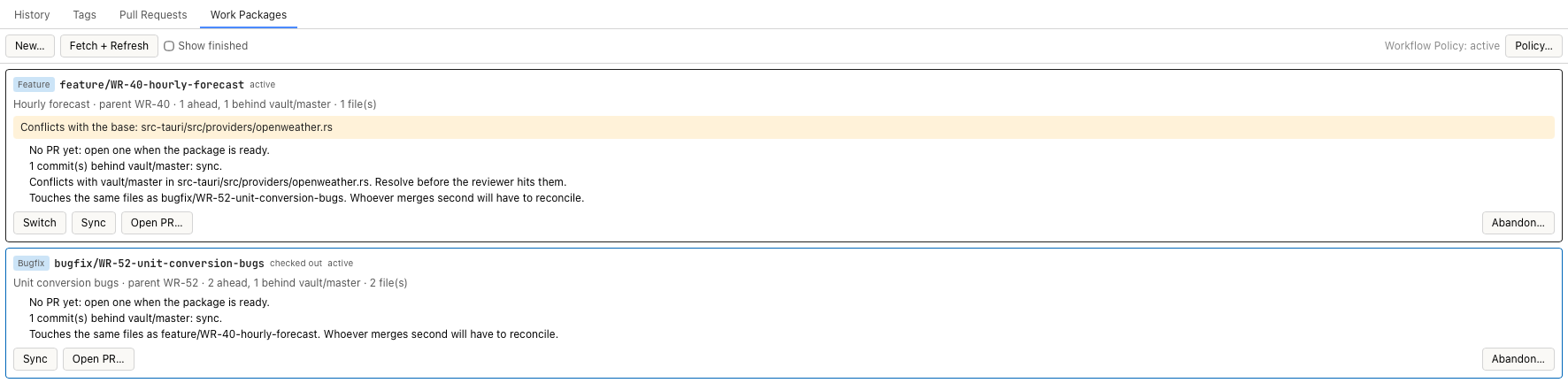
Two packages that change the same file. The feature package also conflicts with the current base.
The toolbar holds New…, Fetch + Refresh, Show finished and, on the right, the state of the policy (Workflow Policy: active or off) with Policy…. Problems while loading, for example a remote without pull request support, appear in a yellow bar below the toolbar.
Each package is a card:
| Part | Content |
|---|---|
| First line | Feature or Bugfix, the branch, checked out for the current branch, the state, and the pull request with number, state and target branch. Click the pull request to open it in the browser. |
| Second line | Title, parent, commits ahead and behind the base, number of changed files. |
| Yellow bar | Conflicts with the base: the files a merge of the current base would conflict in. |
| Hints | What to do next, for example "No PR yet: open one when the package is ready." or "Touches the same files as …". |
| n ticket(s) | Expands the tickets of the package with key, title and status. Click a key to open the ticket in the browser. |
The tickets of a package are the children of its parent, plus the tickets named at the start that are not under the parent.
Fetch + Refresh fetches the remote and recomputes all numbers. Opening the tab recomputes without fetching.
Start a package
Prerequisites: the repository has a remote, and a ticket provider is configured if you name tickets.
- Click New… in the Work Packages tab, or choose Git › New Work Package….
- Select Feature or Bugfix package.
- Enter a Title. The branch name is derived from it.
- In Parent (Epic), enter the key of the parent ticket. With Jira, the field suggests the Epics of the project. To create the Epic, select Create new Epic. It gets the title of the package.
- Optional: in Tickets, enter the keys of the tickets, separated by commas. Tickets that are not under the parent are moved there.
- Optional: change the Base branch. The field suggests the branches of the remote.
- Optional: in Builds on, select an open package this one depends on. The field appears only when open packages exist. The base branch is then taken from that package.
- Clear Push the branch right away if the branch should stay local for now.
- Click Next. The dialog fetches the remote and lists the steps.
- Click Start.
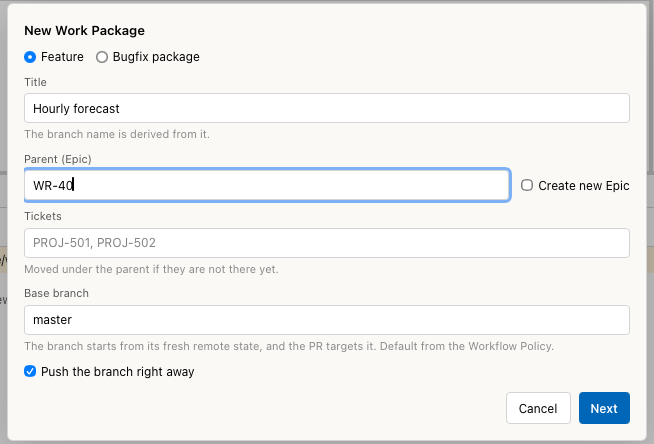
A feature package for the Epic WR-40, based on master.
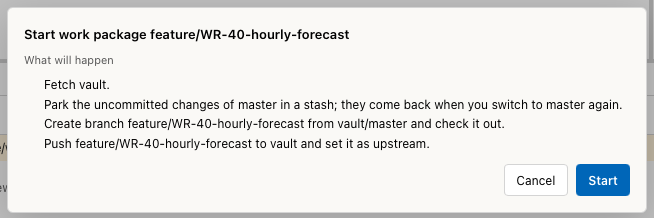
The steps before Start. The changes of the checked-out branch are parked.
The branch is created from the remote state of the base branch and checked out. Uncommitted changes of the previous branch are parked and come back when you switch to that branch again. If the policy sets a status for Branch created, the tickets are moved to it.
Next stays without effect until a title and either a parent or a ticket are entered. If the policy requires a parent, a package without one is refused.
From the Tickets view
- In the Tickets view, select the tickets.
- Click New work package… in the selection bar, or choose Tickets › New Work Package from Selection….
The dialog opens with the selected keys in Tickets. If one ticket is selected, its title is filled in as well.
Switch between packages
In the card of the package, click Switch.
The button appears for packages that are not checked out. Uncommitted changes of the current branch are parked, the package branch is checked out, and changes parked for it earlier are applied. A message names what was parked and restored. If the parked changes do not apply cleanly, the stash is kept and the message says so. Resolve the conflict and drop the stash in the terminal.
Use Switch instead of a plain checkout when you move between packages. A checkout in the branch list or the terminal does not park or restore anything.
Keep a package current
- In the card of the package, click Sync.
- Check the steps and click Sync.
Sync fetches the remote and takes in the new commits of the base branch,
by merge or by rebase as the policy says. If the package is not checked out,
it is checked out for the sync and the previous branch is restored afterwards.
A branch with an upstream is pushed, after a rebase with
--force-with-lease. If the package already contains the base, the dialog
says so and the button reads OK.
If the base conflicts with the package, the sync is blocked. The dialog names the files and the button is disabled. Check out the package branch, merge the base yourself and resolve the conflicts in the merge editor, or ask the AI to do it.
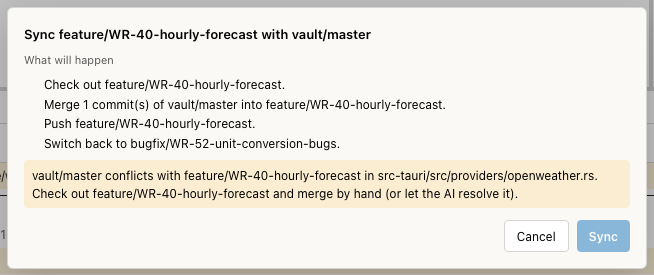
A sync blocked by a conflict in openweather.rs.
For a stacked package, the base is the branch of the package it builds on.
Open the pull request
Prerequisites: the remote is on GitHub or Bitbucket Cloud and a token is configured. See Pull requests.
- In the card of the package, click Open PR….
- Check PR title and PR description. They are filled from the templates of the policy and the tickets of the package.
- Under Reviewers, select or clear reviewers. The default reviewers of the policy are preselected.
- Click Open PR.
The branch is pushed and the pull request is opened against the base branch of the package, or against the branch of the package it builds on. The package moves to in review. If the policy sets a status for PR opened, the tickets are moved to it.
Open PR… is shown until the package has a pull request. A pull request that you opened elsewhere for the same branch is picked up on the next refresh.
Finish a package
After the pull request is merged, the card shows Finish….
- Click Finish….
- Check the steps and click Finish.
Depending on the policy, Finish deletes the branch locally and on the remote and moves the tickets to the status for PR merged. If the branch to be deleted is checked out, the base branch of the package is checked out first. Packages stacked on this one are moved onto the base branch, and their pull requests are retargeted. The package is marked merged.
Abandon a package
- Click Abandon… in the card.
- Check the steps and click Abandon.
The local branch is deleted only if Delete the branch after the merge is on in the Workflow Policy. The remote branch and an open pull request stay as they are. The tickets are not moved. The package is marked abandoned.
Clean up the list
Finished and abandoned packages are hidden. Select Show finished to see them. Remove from list in their card deletes the entry. Branches and pull requests are not touched.