Run the first analysis
The first analysis builds the index of a project. It parses every source file, so it takes longer than later analyses, which only re-parse changed files. This topic covers the first run. Keep the index current covers everything after it.
Prerequisite: the exploration is open and shows Review before analyzing. A new exploration always opens there.
Decide what to analyze
The graph and the AI's answers are only as good as the files in the index. Generated code, vendored libraries and test fixtures add many symbols that nobody works on and push the relevant ones out of search results and hotspot lists.
- On Review before analyzing, read Suggested exclusions. Tracemoor
suggests test, spec and story files and folders such as
tests,__mocks__,examplesandfixtures. - Tick the suggestions that do not belong in the graph. Keep the tests if you want to see which code they call.
- Click Analyze.
Review before analyzing lists the
folders the analysis always skips, such as node_modules, dist and
target, and the files that .gitignore excludes.
Exclude more after the first run
Folders that the suggestions do not cover show up after the first run, for
example a generated/ folder at the top of Complexity Hotspots or a
copy of a library under third_party/.
- In the file tree, right-click the folder and click Exclude this folder.
- Choose Analysis › Re-analyze Project.
See Exclude files and folders. Exclusions are stored per machine and are not shared.
Check the project profile
During the analysis Tracemoor reads the manifest files of the project
(package.json, Cargo.toml, pyproject.toml, go.mod, pom.xml and
others) and counts files per language. The result is the project
profile.
To see it, choose View › Source View. While no symbol is selected, the Details panel on the right shows the profile under Project.
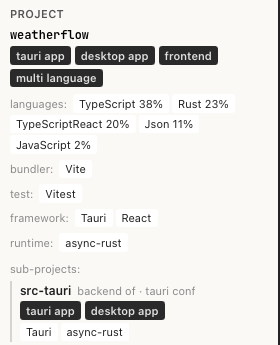
A Tauri app with a React frontend. src-tauri is detected as the backend of the Tauri app.
| Part | Shows |
|---|---|
| Kind badges | What the project is, for example tauri app, desktop app, frontend, multi language. A VS Code extension shows VSCode Extension instead. |
| languages | Languages with their share of the source files |
| bundler, test, framework, runtime, database | Tools and frameworks found in the manifests |
| sub-projects | Folders with their own manifest, with their role (for example backend of) and the manifest that defines them |
For a VS Code extension the panel also shows the contributions of each extension package. Open Manifest → or View › Extension Manifest opens the full manifest.
The profile describes the project. It does not change how files are parsed. One part of it has an effect: for a project detected as a VS Code extension, Analysis › Connect Browser… starts the VS Code inspector instead of the web inspector. If the project also has a web frontend, it asks which one.
Correct the profile
If the profile is wrong, add the file
.codeexplorer/project_overrides.json to the project (not to the
exploration) and re-analyze. The Details panel then shows override
active.
{
  "project_kinds": ["desktop_app", "multi_language"],
  "tech_items": {
    "add": [{ "category": "framework", "name": "SwiftUI", "sub_root": "gui" }],
    "remove": [{ "category": "framework", "name": "AppKit" }]
  }
}
project_kindsreplaces the detected kinds. Allowed values are listed in Project kinds.tech_items.addandtech_items.removechange single entries.categoryis one offramework,language,runtime,bundler,database,test,other.sub_rootnames a sub-project folder; without it the entry belongs to the project root.
A file with an unknown value is ignored as a whole.
Set the cluster root
The analysis groups files into clusters. The direct subfolders of the
cluster root become the top-level clusters. Tracemoor picks src,
then lib, then app, then the project root. The clusters are used by the
AI's structure tools and by the
coverage drill-down.
- Choose Analysis › Project Settings….
- On the General tab, enter a folder under Explicit Cluster Root (optional) or click Browse…. Reset to Auto returns to the detected folder.
- Save and re-analyze the project.
Example: in a monorepo whose code lives under packages/, set the cluster
root to packages so that each package becomes a cluster.
Next step
Continue with Find your way in the codebase.