Generate specs from code
For an existing codebase, Tracemoor can have the AI write functional specifications (FS) from the code. The AI produces drafts. A draft becomes a spec only when a person accepts it.
Tracemoor decides which symbols belong to one draft. The AI reads the code of these symbols and writes the text. The anchors of a draft are the symbols Tracemoor chose, not symbols the AI picked.
There are three ways to start:
| Way | Use it for |
|---|---|
| Decompose › Generate spec | One draft for one group of symbols, through the chat. |
| Sweep | Drafts for many groups in one run. |
| + New Reverse-Spec Run | A draft run for a symbol list you enter. |
All drafts end up in the Drafts tab.
The AI needs Brave mode to write drafts.
Find groups of symbols
Decompose (or View › Capability Decomposition) opens Capability Decomposition. It splits the code into capabilities: groups of symbols that together do one thing.
- Click Decompose in the toolbar of the Specs view.
- Choose the strategy:
entry_point: one group per entry point (command, handler,main) with the functions it calls.cluster: one group per cluster of the call graph.
- Optional: enter a cluster ID to limit the groups to one cluster, or filter the list by text.
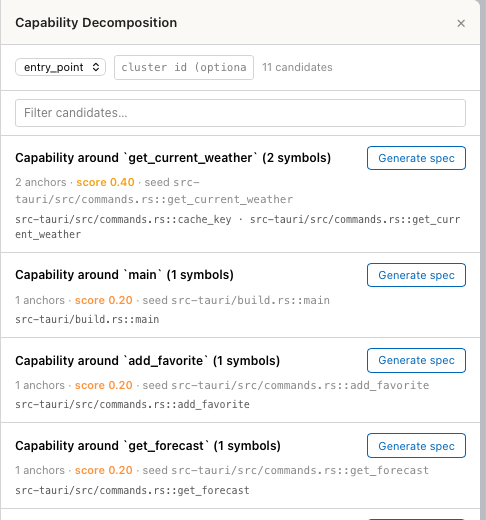
Each card shows the group's symbols, the seed symbol it started from and a score. The score is highest for groups of 5 to 15 symbols and drops for smaller or larger groups. Small projects produce small groups with low scores.
Generate one draft
- In Capability Decomposition, click Generate spec on a card.
- The chat opens with a prepared request that names the symbols. Add instructions if needed, for example the language of the spec.
- Send the message.
The AI reads the code and creates the draft with the tool
reverse_spec_create_draft. For profiles with a template (GAMP 5 has one for
each type) the draft follows the template's sections, for example
Functional Purpose, Inputs, Outputs and Acceptance Criteria.
Generate drafts for the whole project
Sweep (or View › Baseline Sweep) creates one draft per group.
- Click Sweep.
- Choose the strategy (
clusterorentry_point). - Choose the mode:
gaps_onlyskips groups whose symbols are already anchored,regenerate_alltakes every group. - Optional: enter a number under max items to limit the run.
- Optional: tick dry-run to try the run without the AI. It writes placeholder drafts.
- Click Start.
How the run proceeds depends on Backend Mode in the Claude tab of the AI settings (see Providers):
- Subscription mode (interactive PTY): Tracemoor lists the planned items. Tick the ones to generate and click Run selected (N). Each item runs in its own new chat session. Do not use the chat until Chat sweep running… disappears. Your previous session is restored at the end.
- Extra Cost (
claude -pper-token API): the run starts in the background. The status line shows progress, for examplerunning · 3/10 done · 0 skipped · 0 failed. Pause, Resume and Cancel control it.
In both cases, Show in graph colours the symbols of the items in the Graph view by status. The ↻ button of an item generates it again on the next Resume.
Start a run for selected symbols
- In the Drafts tab, click + New Reverse-Spec Run.
- Under Scope, enter a label for the run, for example
cluster:7or a file path. - Under Symbol anchors, add the symbols.
- Leave Dry-run ticked for a first try. Untick it for real drafts.
- Click Start Run.
A run without dry-run starts claude -p in the background, which is billed
per token. In subscription mode Tracemoor refuses such a run and asks you
to switch the backend or to use dry-run. Use Generate spec or
Sweep instead.
Review drafts
The Drafts tab lists every pending draft, whichever way it was created. Drafts that the AI wrote through the chat appear after Refresh.

| Action | Effect |
|---|---|
| Preview | Shows title, type, confidence, file and the full text. |
| Accept | Turns the draft into a spec: final ID (for example FS-DRAFT-001 becomes FS-CKNZZP), file in the type folder, status draft. The proposed symbols become its anchors. |
| Discard | Deletes the draft. Asks first. |
| Reformulate | Sends your feedback to the chat, which writes a new draft. |
The accepted spec keeps ai_generated, ai_confidence, ai_run_id and
accepted_from_draft_id in its frontmatter. Link it to its requirement and
test case afterwards, see Link specs.
Have a draft rewritten
- In the draft's row, click Reformulate.
- Enter what is wrong with the draft.
- Click Send to AI.
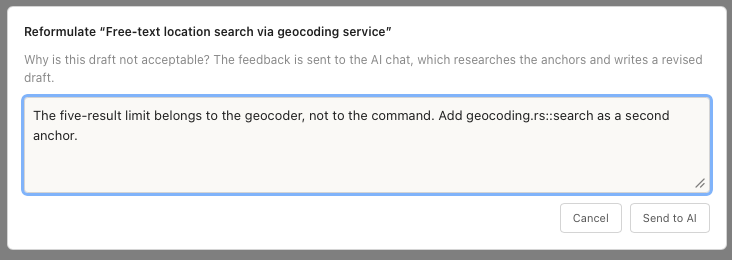
The chat input now holds a request with your feedback and the draft's anchors. Send it. The AI creates a new draft. The old draft stays in the list until you discard it.
Accept many drafts at once
The bar of the Drafts tab sets the conditions for Bulk accept…:
| Control | Condition |
|---|---|
| conf ≥ | Minimum confidence, from 0 to 1. |
| anchors ≥ | Minimum number of anchors. |
| tests | At least one proposed test anchor. |
Click Bulk accept…. Tracemoor names the number of matching drafts and asks before it accepts them. The conditions are kept per project.
Confidence ↓ sorts the list, the slider ≤ N % hides drafts above a confidence. With rows ticked, Show in graph and Discard selected act on the selection.
Suggested order for an existing codebase
- Run Sweep with
cluster,gaps_onlyand dry-run to see how many groups there are. - Run it again without dry-run, starting with a small max items.
- Accept the drafts with high confidence through Bulk accept….
- Review the others with Preview, rewrite them with Reformulate or discard them.
- Write the user requirements and link the accepted FS to them and to test cases.