Anchors
An anchor binds a spec to a code symbol, for example
src-tauri/src/commands.rs::get_current_weather. The concept is explained in
Specifications. This page describes how to
set anchors and how to deal with anchors whose code has changed.
Anchors are maintained in the Anchors tab of the spec editor in the Specs view.
Anchor a symbol
- Select the spec and open the Anchors tab.
- In the field symbol-id (file::name) — Enter to add, type the name of
the symbol, for example
get_forecast. - Tracemoor searches the code and lists matching places with file and line. Click the file that defines the symbol.
The anchor is written as <file>::<typed name>. If you know the exact ID,
type it in full, for example src-tauri/src/commands.rs::get_forecast, and
press Return.
The name you type is used as the symbol name. If it does not match a symbol
in the chosen file, the anchor shows missing.
A click on an anchor opens the symbol in the code view.
Anchor a symbol of a reference project
A spec can anchor code that lives in a reference project, for example the server endpoint a client feature depends on.
- In the Anchors tab, choose the reference project in the menu left of the field. The menu appears only when references are set up.
- Type the symbol name.
- Pick the symbol from the list.
The anchor is stored as ref:<reference>:<path>::<name>. Its row shows the
reference as a coloured chip and one of these states:
| Shown | Meaning |
|---|---|
| Name of the state, for example a tag | The symbol exists in the state the reference reads. |
not in this state | The reference reads another state, which does not contain the symbol. |
reference missing | The reference is not set up on this machine. |
Anchors to a reference never become suspect. See also References and the AI.
Read the anchor states

| Shown | Meaning | What to do |
|---|---|---|
| no label | The anchor points to an existing symbol whose code is unchanged. | Nothing. |
missing | No symbol with this file and name exists in the index. | Correct the anchor: remove it and add the right one. |
suspect | The code of the symbol changed since the anchor was confirmed. | Check the spec against the code, then resolve the anchor. |
Resolve a suspect anchor
A suspect anchor means that someone has to decide whether the spec still describes the changed code.
- Click the anchor to open the symbol and read the change.
- If the spec still holds, click resolve… in the anchor row.
- In Resolve suspect anchor, enter why the spec still holds, for example "Only a comment was added".
- Click Resolve.
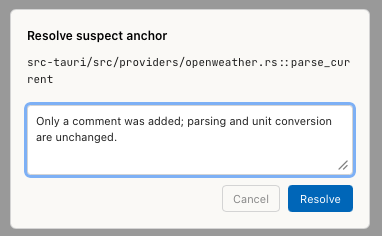
Tracemoor stores the current state of the code as the new reference and
writes a suspect_resolved event with your reason to the audit trail.
If the spec no longer holds, change the spec first. Resolve the anchor afterwards.
Find suspect anchors
- The toolbar of the Specs view shows ⚠ N suspect when anchors are
suspect. A click opens the gap list with the
suspectfilter. With reviewer off, only anchors ofapprovedspecs count. - In the Matrix tab, Suspect Only shows only rows with suspect anchors.
- In the artifact list,
A:followed by a file or symbol name finds the specs anchored there.
Keep anchors current
Tracemoor resolves all anchors again with each analysis and when you click Re-index in the Matrix tab. Click Re-index after you have switched branches, pulled changes or edited spec files outside Tracemoor.
How an anchor reacts to code changes:
| Change in the code | Result |
|---|---|
| Lines added above the symbol | Anchor stays ok. It follows the symbol. |
| File renamed or moved | Anchor stays valid. Tracemoor finds the symbol by name and kind and records anchor_auto_renamed. |
| Body of the symbol changed | Anchor becomes suspect. |
| Symbol renamed | Anchor becomes missing. |
| Symbol deleted | Anchor becomes missing. |
A renamed symbol is never matched to a similar symbol automatically. Fix the anchor in the spec when you rename the symbol. The AI does this on its own when it renames, moves or deletes a symbol, see Specs and the AI.
Anchors in the code editor
The spec lane of the editor gutter marks anchored symbols in the colour of the spec status. A click lists the specs and offers Open in Spec View. See Gutter.
Code and test anchors with a sidecar profile
With a sidecar profile the spec
files stay untouched. Anchors are stored in specs/_overlays/<profile>.json.
The Anchors tab shows Code anchors and Test anchors separately.
Tick as test before adding a symbol to make it a test anchor.