Ask about code
You can start a question from the place where you look at the code. Tracemoor
puts the file, line, symbol or selection into the question as context,
with a ce:// link back to it. The question lands in the input field of the
chat panel. You send it.
Ask with the Ask AI dialog
- Open the context menu at the code:
- Editor: right-click a line and choose Ask AI about this line…, or select lines and choose Ask AI about this selection….
- Call Chain Explorer: right-click a card.
- Terminal panel: click Send to AI in the tab bar. It sends the selection, or the last 50 lines without one. See Terminal.
- In the dialog, enter the question under Your question.
- Click Ask or press
Cmd+Enter(Windows/Linux:Ctrl+Enter).
Prompt preview shows the complete text that goes into the chat: the context, a link to the code, the code itself for short selections, and your question. File paths inside the project are relative to the project root.
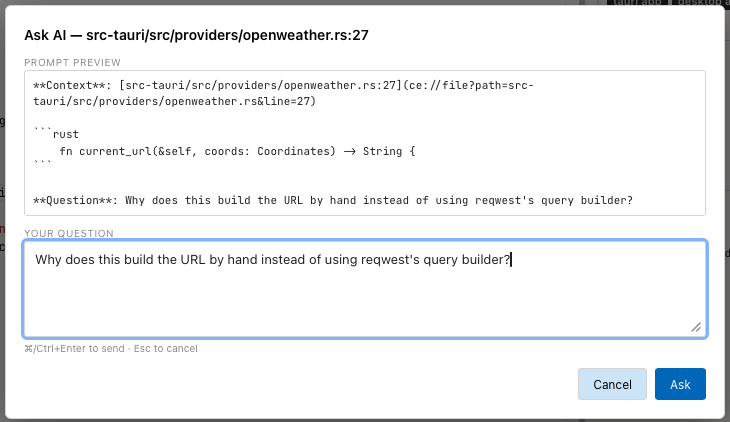
The Ask AI dialog for one line in the editor. The preview contains the link to the line and the code.
A selection of more than 40 lines is not copied into the question. The AI reads the file instead.
Ask from the graph
In the graph view, click 🤖 Ask AI in the query bar. The dialog Ask AI
about this codebase takes a question in plain language, for example "What
breaks if I change UserService?". The answer contains ce://graph-perspective
links that open the matching graph view. See
Graph view.
Questions without a dialog
These entries write a prepared question into the input field:
| Entry | Question |
|---|---|
AI › Quick-Explain Selection (Cmd+Shift+A, Windows/Linux: Ctrl+Shift+A) | Explain the selected file or symbol. |
| AI › Ask for Diagram… | Draw a Mermaid diagram of the selected file or symbol. |
| File tree, context menu of a file: Ask AI: explain this file, Ask AI: find bugs, Ask AI: write tests | The named task for this file. |
| Tickets view, Ask AI (Tickets › Ask AI about Ticket) | Key, title and description of the ticket. See Tickets view. |
Ask with a screenshot
A screenshot of the running app is often the shortest way to name a control.
The AI finds the source of a visible label through the UI and text index
(find_ui_source), including translated strings and the click handler.
- Paste the screenshot into the chat input field, or drop the image file onto it.
- Optional: click Annotate on the thumbnail and mark the element with an arrow or a frame. The marked image replaces the attachment.
- Write the question, for example "What happens when I click this button?", and send it.
For web apps, Browser Screenshot → Chat and Pick Browser Element → Chat in the top bar put a screenshot or an element of the connected browser into the chat. See the runtime section.
Limits
- Quick-Explain Selection and Ask for Diagram… use the selected file or symbol, not the text selection in the editor. For a text selection, use Ask AI about this selection….
- Paths outside the project, for example in a reference project, stay absolute in the question.