Chat panel
The chat panel is where you talk to the AI. It sits on the right side of the
window. Show or hide it with View › Toggle AI Chat (Cmd+J, Windows/Linux:
Ctrl+J) or the chat button at the right end of the top bar.
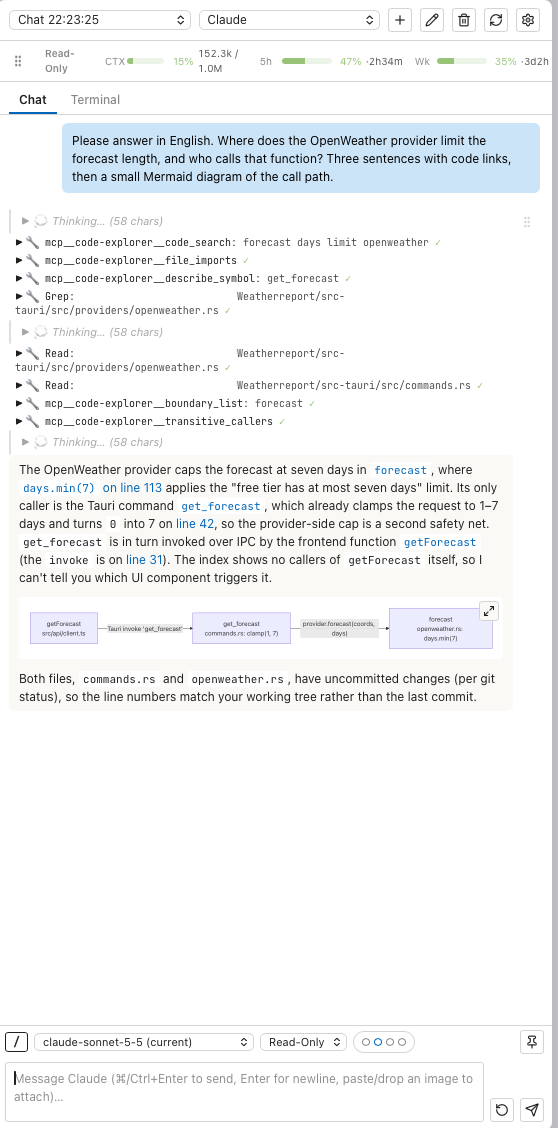
A question about Weatherreport: the AI queries the index, answers with links to the code and draws the call path.
Header
| Control | Effect |
|---|---|
| Session list | Switches to another session of this exploration. See Sessions. |
| Provider list | Starts a new session with another provider. The provider of a session is fixed. |
| + (New … chat) | Starts a new session with the provider shown in the provider list. |
| Pencil (Rename session) | Renames the session. A double-click on the session name does the same. |
| Bin (Delete session) | Deletes the session. |
| Circular arrows | Reloads the session from the transcript file of claude. Use it when the panel shows a different state than the session. Claude (CLI) only. |
| Gear (AI Settings) | Opens AI Settings. See Set up a provider. |
The line below shows the session mode, the session name and, with Claude (CLI), three bars:
| Bar | Shows |
|---|---|
| CTX | How full the context window of the session is, in tokens. |
| 5h | Use of the five-hour quota of your Claude plan, with the time until it resets. |
| Wk | Use of the weekly quota, with the time until it resets. |
A red ! on a bar means the value could not be read. Its tooltip names the reason.
The handle at the left of this line saves the whole conversation as a projectdocs entry: drag it onto a phase in the dashboard. See Sessions.
Chat and Terminal tabs
With Claude (CLI) in subscription mode, the session runs in the claude
terminal program in the background. Chat shows the conversation in a
readable form. Terminal shows the running claude program itself, with
its status line and its own prompts. Both show the same session.
Other providers have no Terminal tab.
The conversation
| Element | Description |
|---|---|
| Your message | Right-aligned. Attachments appear below the text. |
| Thinking… | The reasoning of the model, collapsed. Click to expand. |
| Tool call | One line per tool call, for example mcp__code-explorer__describe_symbol: get_forecast. Click the arrow to see input and result. A tick marks a finished call. |
| Answer | Formatted text. Code references are links. |
| Diagram | Mermaid diagrams are rendered. The button at the top right opens the diagram full size, with zoom and pan. Nodes with a ce:// link open the code. |
| Live diff | While the AI edits a file, the change appears as a diff in the conversation. |
| Changed files | After a turn that changed files, a list of all files changed since the session started. Each file expands into a side-by-side diff. Revert this file and Revert all undo the changes. |
Links in answers
The AI writes code references as ce:// links:
| Link | Opens |
|---|---|
ce://file?path=…&line=… | The file in the editor, at the line |
ce://symbol?file=…&name=… | The file with the symbol selected |
ce://graph-perspective?kind=… | The graph with a prepared view, for example the callers of a function |
ce://projectdocs?section=entry&… | A projectdocs entry in the dashboard |
ce://commit?hash=… | The commit in the Git view |
A click on a link does not leave the chat. The view behind it changes.
Questions and plans from the AI
With Claude (CLI), the AI can ask a question with options or present a plan. Both appear as a card in the conversation:
- A question card lists the options. Choose one, or enter your own answer, and click Send answer.
- A plan card shows the plan. Approve & continue lets the AI start, Reject stops it. A reason for the rejection is optional.
Errors
If a turn fails, an error message appears in the conversation. Retry resumes the same session and sends the last message again. Open log folder opens the folder with the log files. Show stack shows technical details.
Input bar
| Control | Effect |
|---|---|
| / | Opens the list of slash commands. |
| Model list | Model of this session. (current) marks the model in use. |
| Mode list | Session mode of this session. Can be changed at any time. |
| Dots | Effort level: how long the model may think. Four levels for Sonnet, five for Opus. Hidden for models without effort levels, for example Haiku. |
| Skill chip | The active skill. Click to detach it. See Project context. |
| Pin | Locks or unlocks automatic scrolling to the newest message. |
| Arrow (Regenerate last answer) | Puts your last message back into the input field. Edit it and send it again. |
| Send | Sends the message. While the AI works, the button is Cancel current turn. |
Enter sends the message and Shift+Enter inserts a new line. With
Send on Ctrl/Cmd+Enter in AI Settings › General, Enter inserts a
new line and Cmd+Enter (Windows/Linux: Ctrl+Enter) sends. The placeholder
in the input field names the current rule.
Messages you send while the AI is working wait in a queue above the input field. Remove from queue deletes a waiting message.
Slash commands
Type / at the start of a message, or click /, to open the list. It has
sections for built-in commands, your own commands, plugin commands and project
commands.
| Command | Effect |
|---|---|
/clear | Starts a new session with the same model and mode. |
/model sonnet|opus|haiku|fable | Switches the model. |
/effort low|medium|high|xhigh|max|auto | Switches the effort level. |
/diagram <topic> | Asks for a Mermaid diagram. |
/context | Shows how full the context window is. |
/usage | Shows the five-hour and weekly quota of your Claude plan. |
/compact | Replaces the conversation with a summary of it. |
/fork | Continues the conversation in a new branch. Subscription mode only. |
/help | Help of the claude program. Subscription mode only. |
/login | Runs claude login. A browser window opens. |
Skills appear in the same list with their trigger, for example /review or
/explain. Choosing one sends /<name> and attaches the skill for that turn.
The same list opens with AI › Slash Commands… (Cmd+/, Windows/Linux:
Ctrl+/).
Attachments
Paste an image into the input field, or drop one or more files onto it. Any file type works. Attachments appear above the input field: images as thumbnails, other files as a chip with the file name.
- Annotate on an image opens the image editor. Draw arrows, frames and text to mark what the question is about. The annotated image replaces the attachment, the original stays unchanged.
- Remove deletes the attachment before sending.
Attachments are stored in the exploration (.codeexplorer/attachments/, not
shared through Git) and stay part of the conversation. In earlier messages, a
click on an image enlarges it, a click on a file chip opens the file.
How the provider receives an attachment:
| Provider | Images | Other files |
|---|---|---|
| Claude (CLI) | claude reads the file. | claude reads the file. |
| API providers | Sent as image input. | Text files are inserted into the message, long files shortened. For binary files the message notes that they cannot be shown as text. |
Settings for the panel
In AI › AI Settings…, tab General:
| Setting | Effect |
|---|---|
| Keep tool usage in chat | Keeps tool calls, thinking and live diffs in the conversation after the answer arrives. Off: they disappear once the turn is finished. |
| Send on Ctrl/Cmd+Enter | See Input bar. |
| Check git status before new chat | Before a new session starts, checks the project for uncommitted changes. If there are any, a dialog asks: Start New Chat starts it anyway, Commit First opens the Git view with the session name as commit message. |